Marstek Integration
Du hast noch keinen Speicher und möchtest dir einen von Marstek zulegen? Dann kannst du uns ganz einfach unterstützen, indem du über den folgenden Link bestellst. Für jede Bestellung über unseren Partnerlink erhalten wir eine kleine Kommission – für dich entstehen dabei natürlich keine zusätzlichen Kosten. Vielen Dank für deinen Support!
The stromleser.one integrates seamlessly with your Marstek battery storage to enable reliable and dynamic zero feed-in. The following steps walk you through the complete setup.
This integration is only available for stromleser.one devices.
Compatible Marstek Devices
The following Marstek battery storage systems are compatible with the stromleser.one:
- Venus E 3.0
- Venus D
- Venus A
- Venus B
- Venus E 4.0 (Coming Soon)
- Venus E Pro (Coming Soon)
- Venus E Max (Coming Soon)
- Venus E Mini (Coming Soon)
As well as all future Marstek models. Older models are not supported.
The Venus B2500-D is not supported by the stromleser.one.
Prerequisite
Before starting the integration, make sure you have fully and safely installed your Marstek battery storage according to its manual, including the companion app.
- Manual: marstek.de/apps/help-center
- App download: marstek.de/pages/app-download
Step 1: Install the stromleser.one at your meter
If you haven't done so already, install your stromleser.one on your electricity meter.
You can find out how to install your stromleser.one here: Physical Installation
Before installation, make sure your electricity meter is unlocked using the PIN entry so that the stromleser.one can read and transmit data in real time. Find out how to do this here.
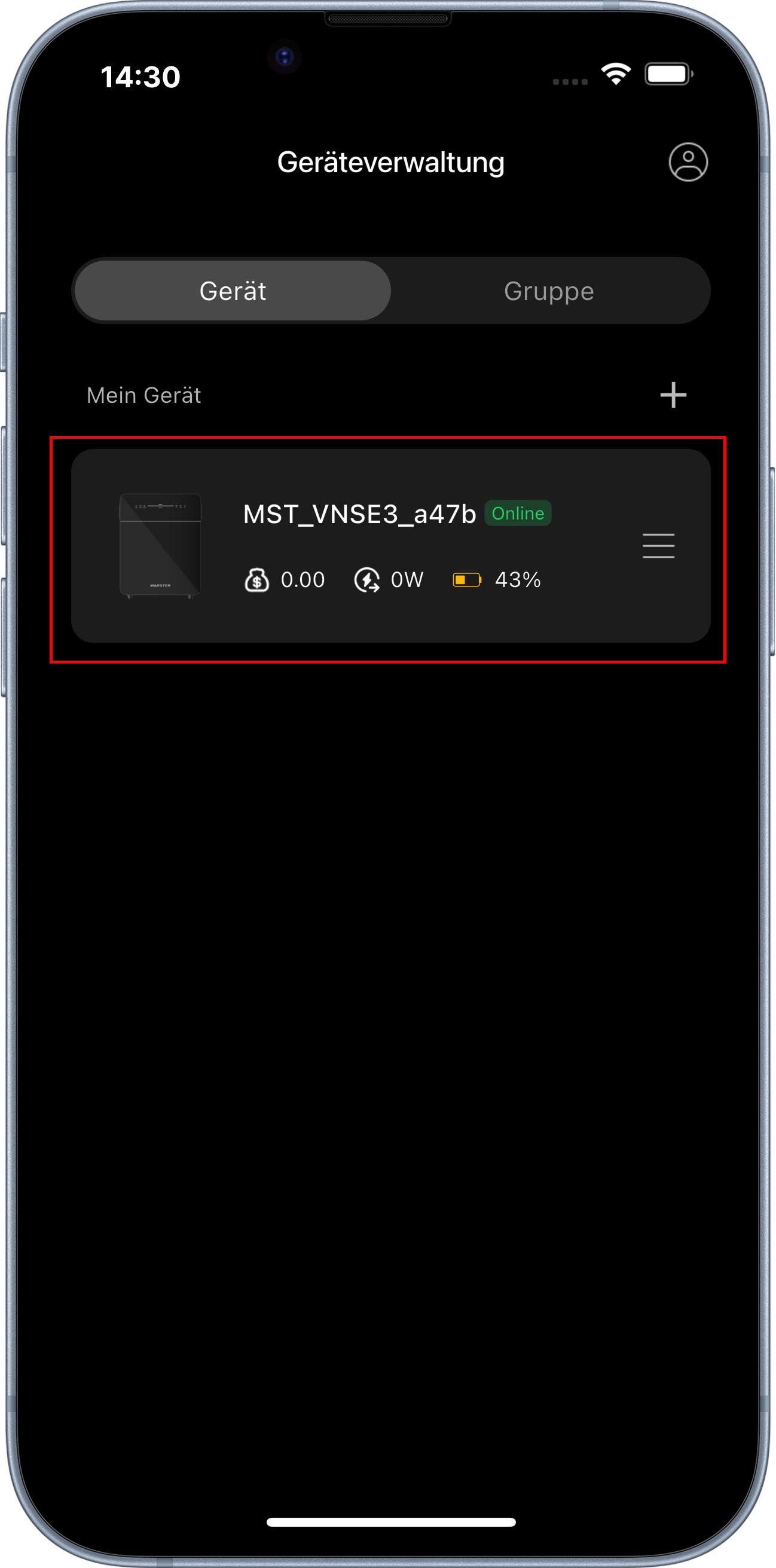
Step 2: Open the Marstek App and select your device
- Open the Marstek App
- Tap on your battery storage in Device Management
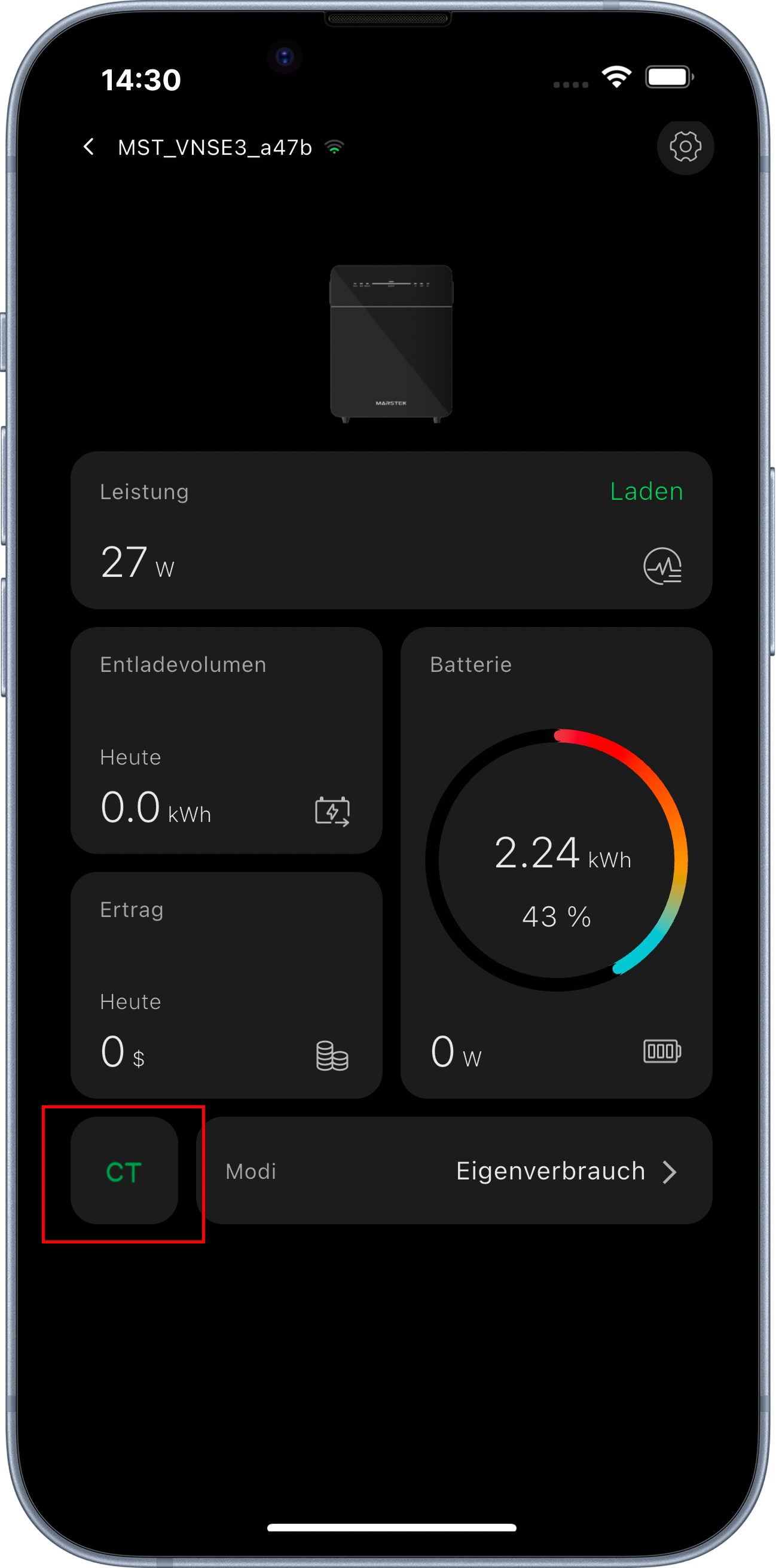
Step 3: Open the CT section
- In the device overview, tap CT
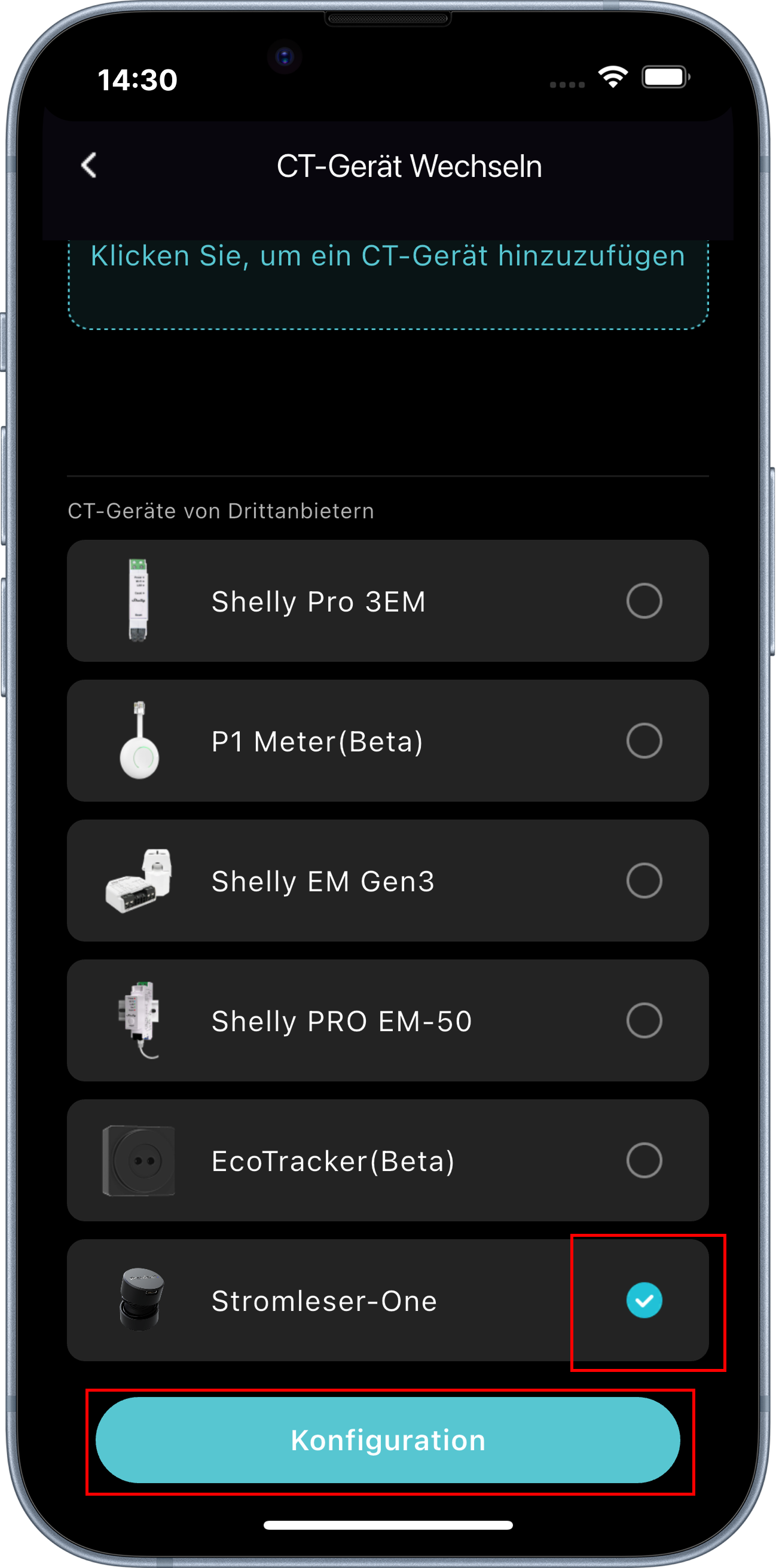
Step 4: Select and configure the stromleser.one
- Select Stromleser-One from the list of CT devices
- Tap Configuration
Step 5: Add the CT device
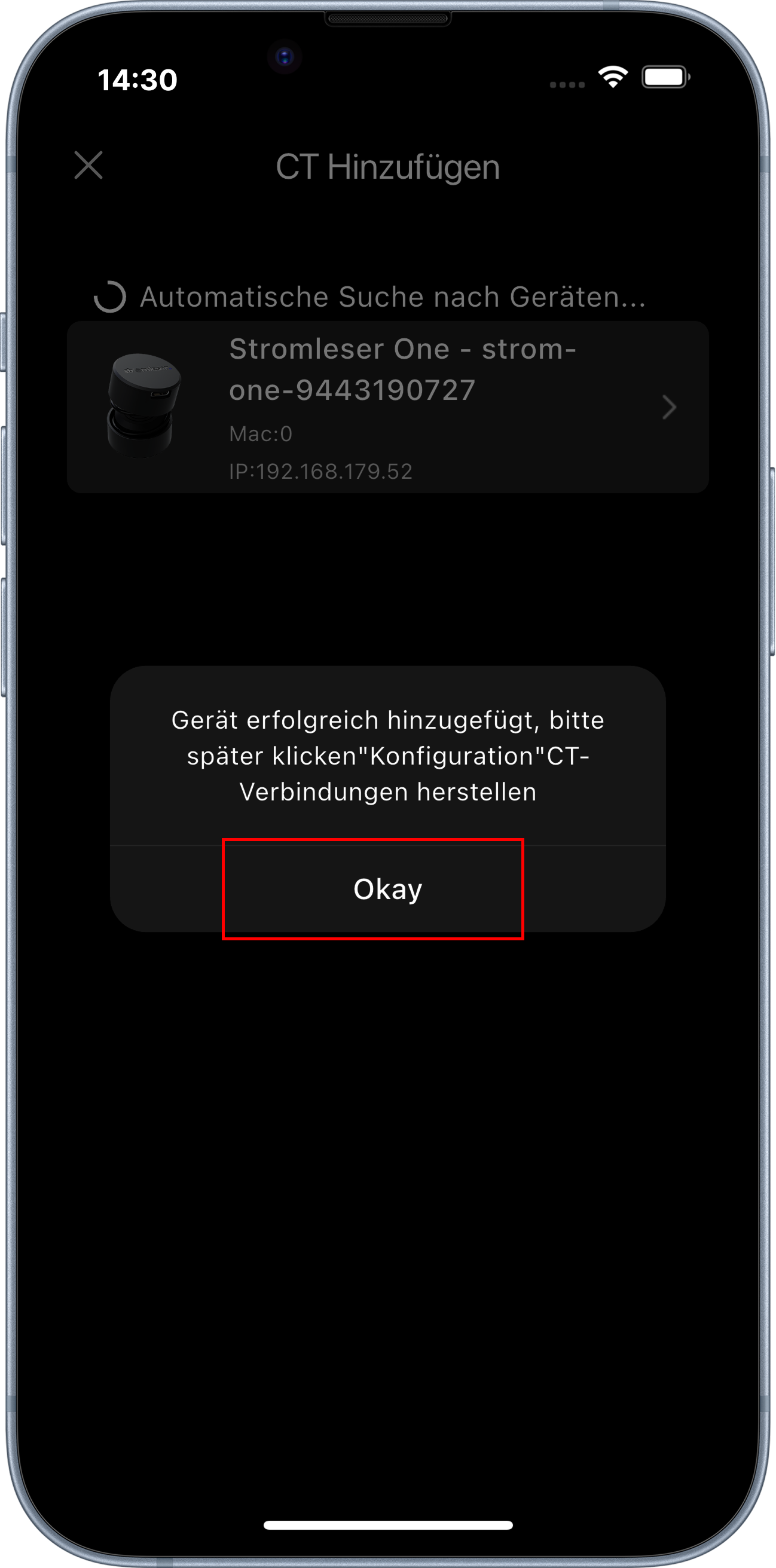
- Wait for your stromleser.one to appear in the list
- Select your stromleser.one
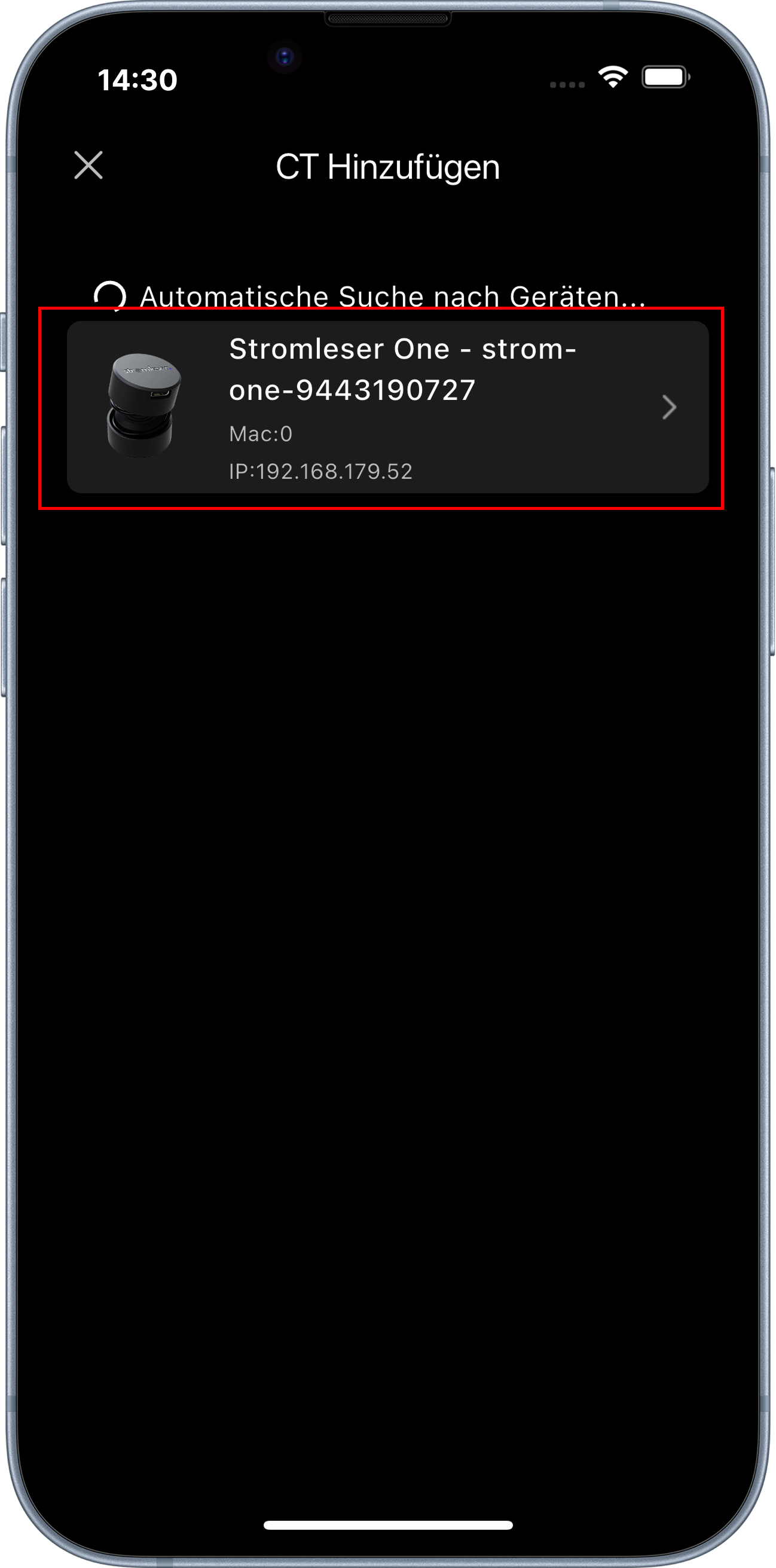
- Tap Okay once your stromleser.one has been successfully added
Step 6: Establish the connection
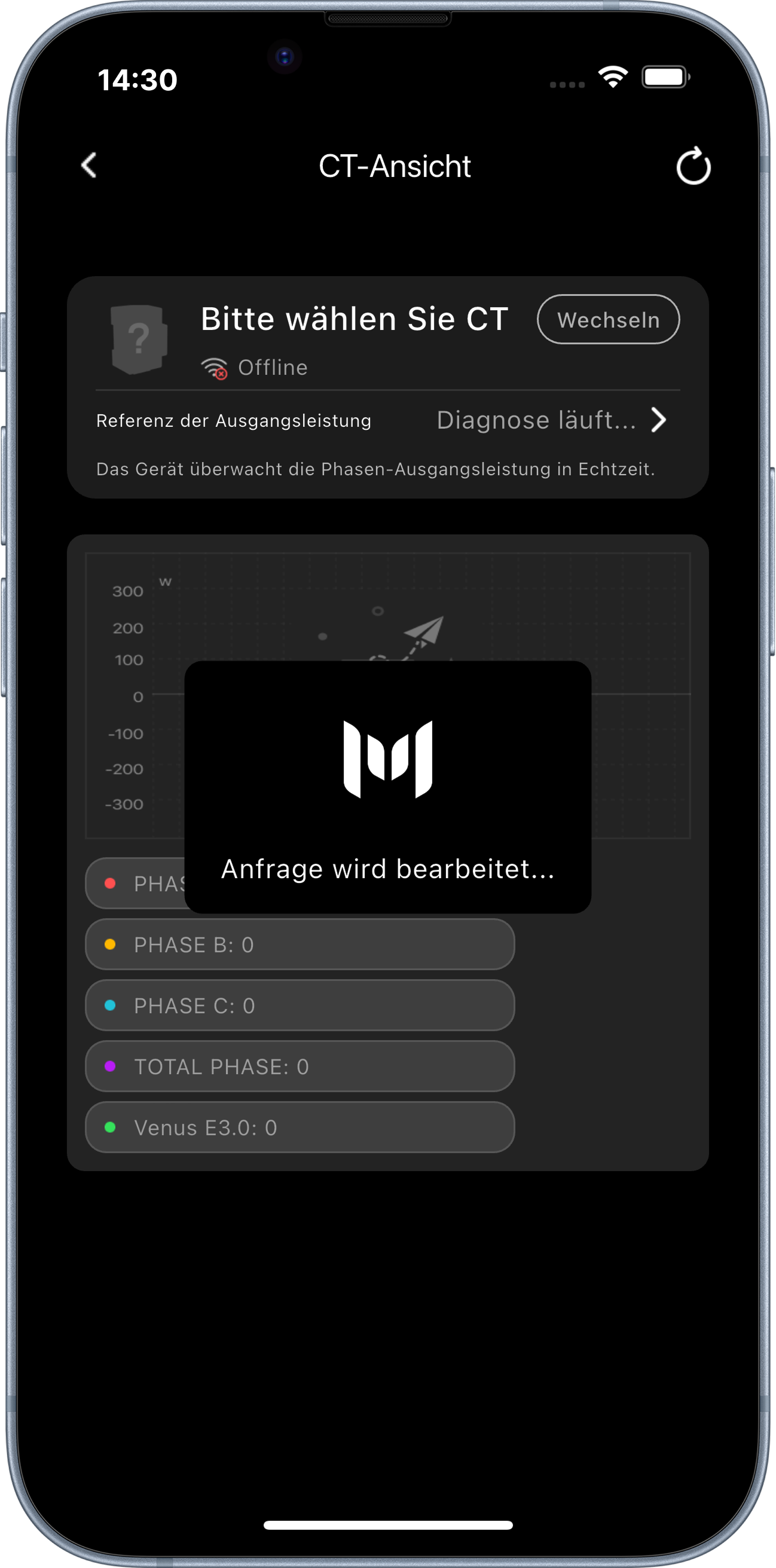
- Wait a moment while the stromleser.one connects to your Marstek storage
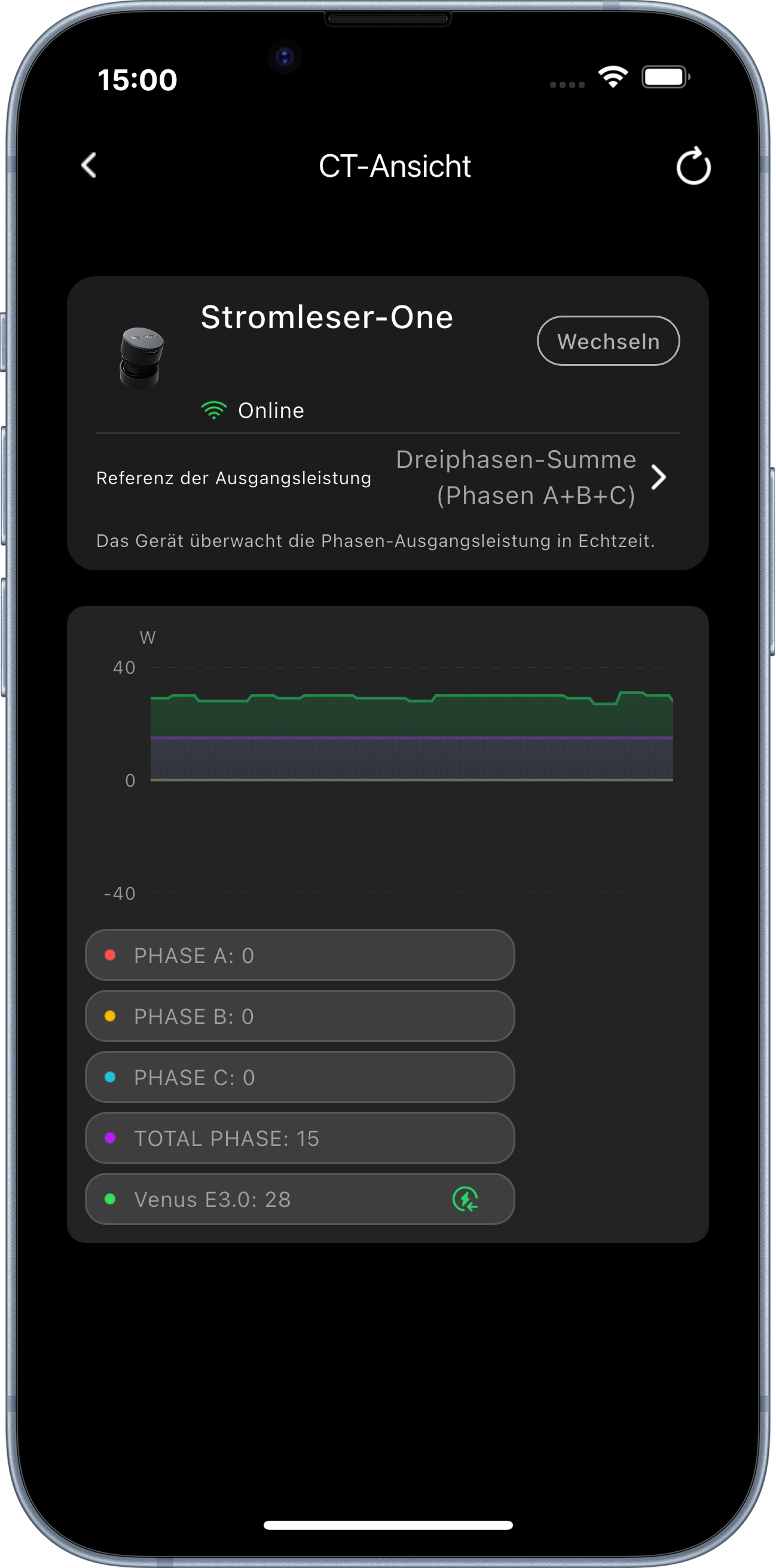
- Once the stromleser.one shows as Online, the connection has been established successfully
Step 7: Set the mode
- Go back to the device overview and tap Modes
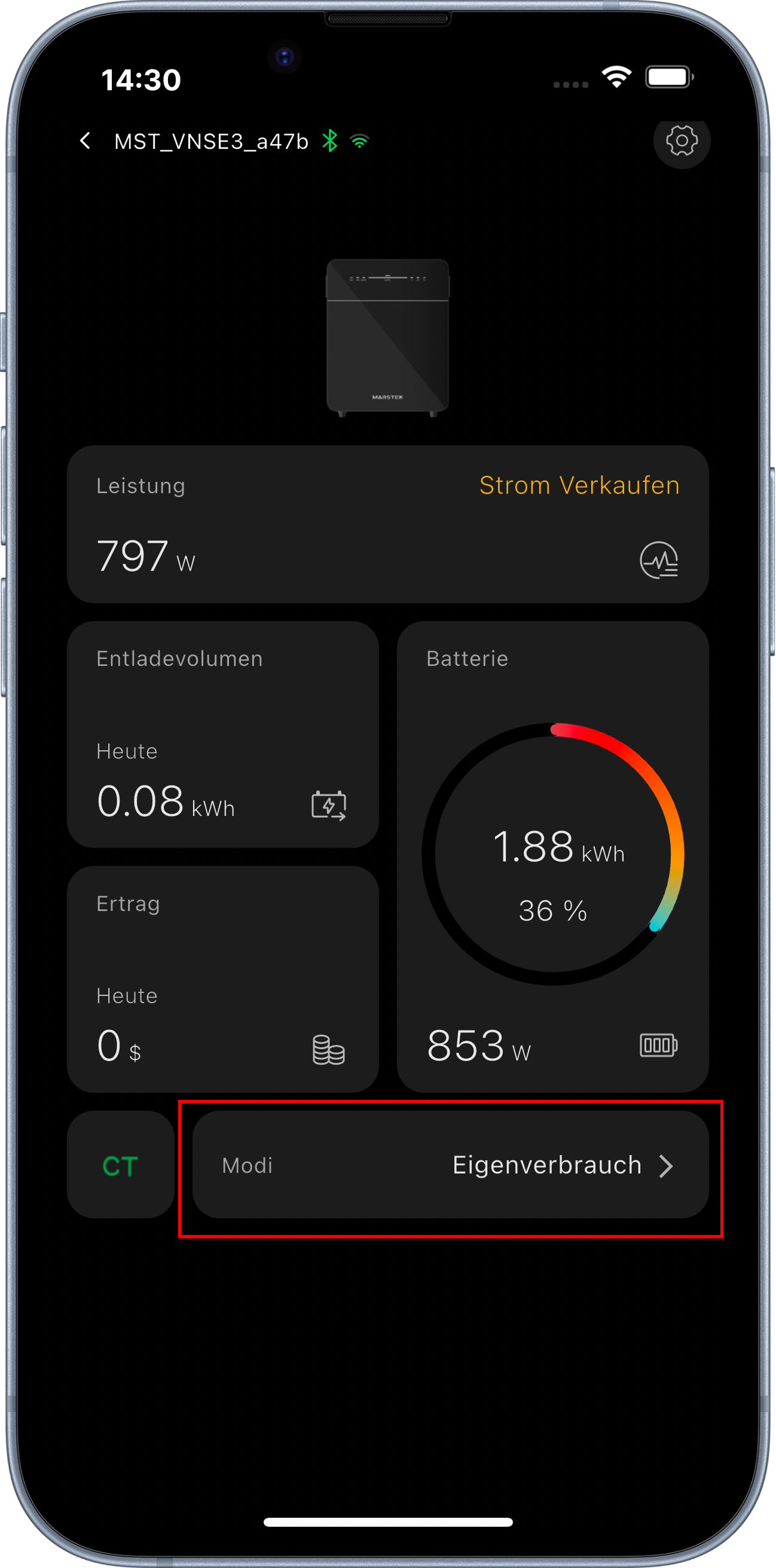
- Select Self-consumption to enable zero feed-in
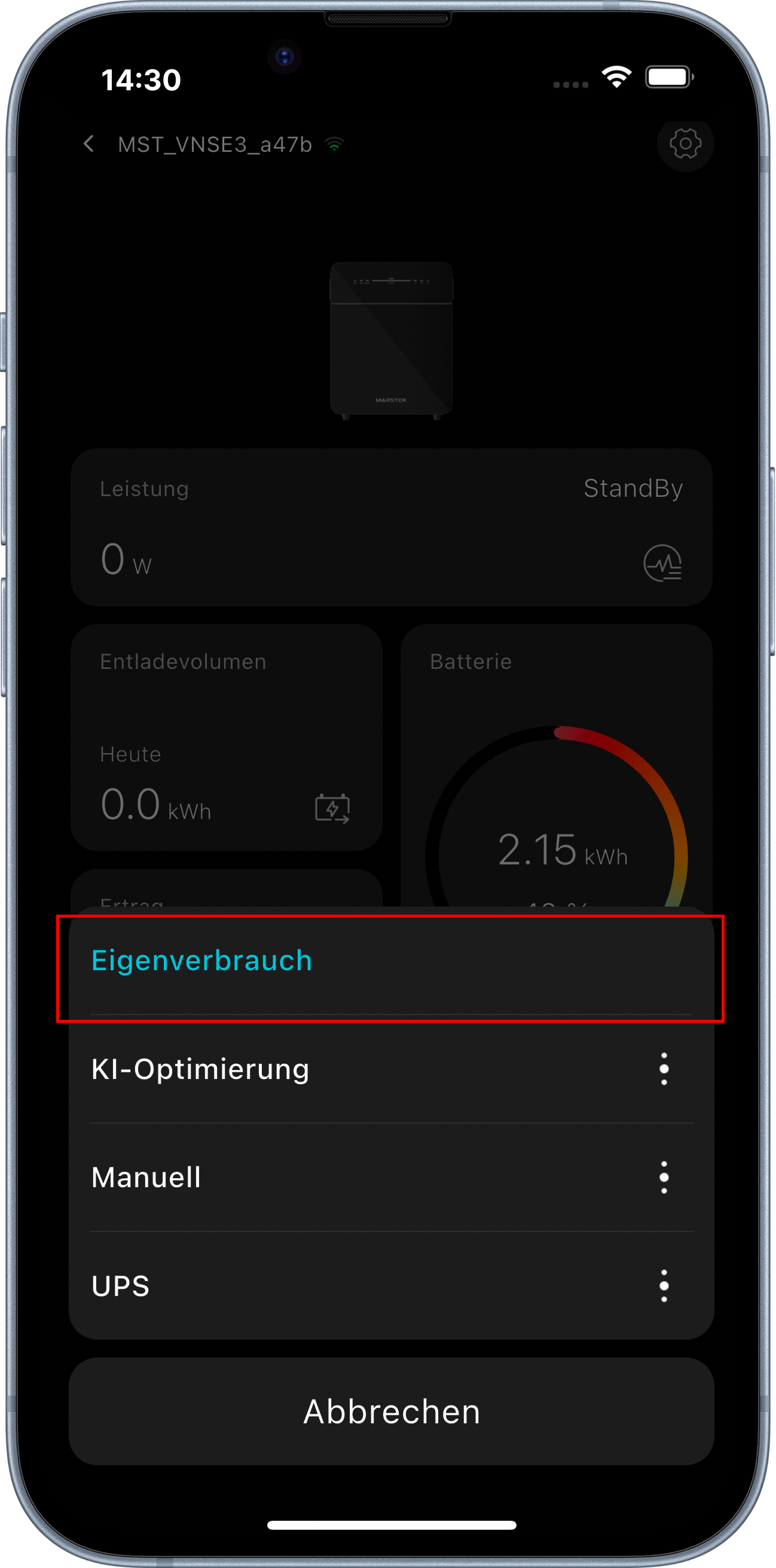
All done
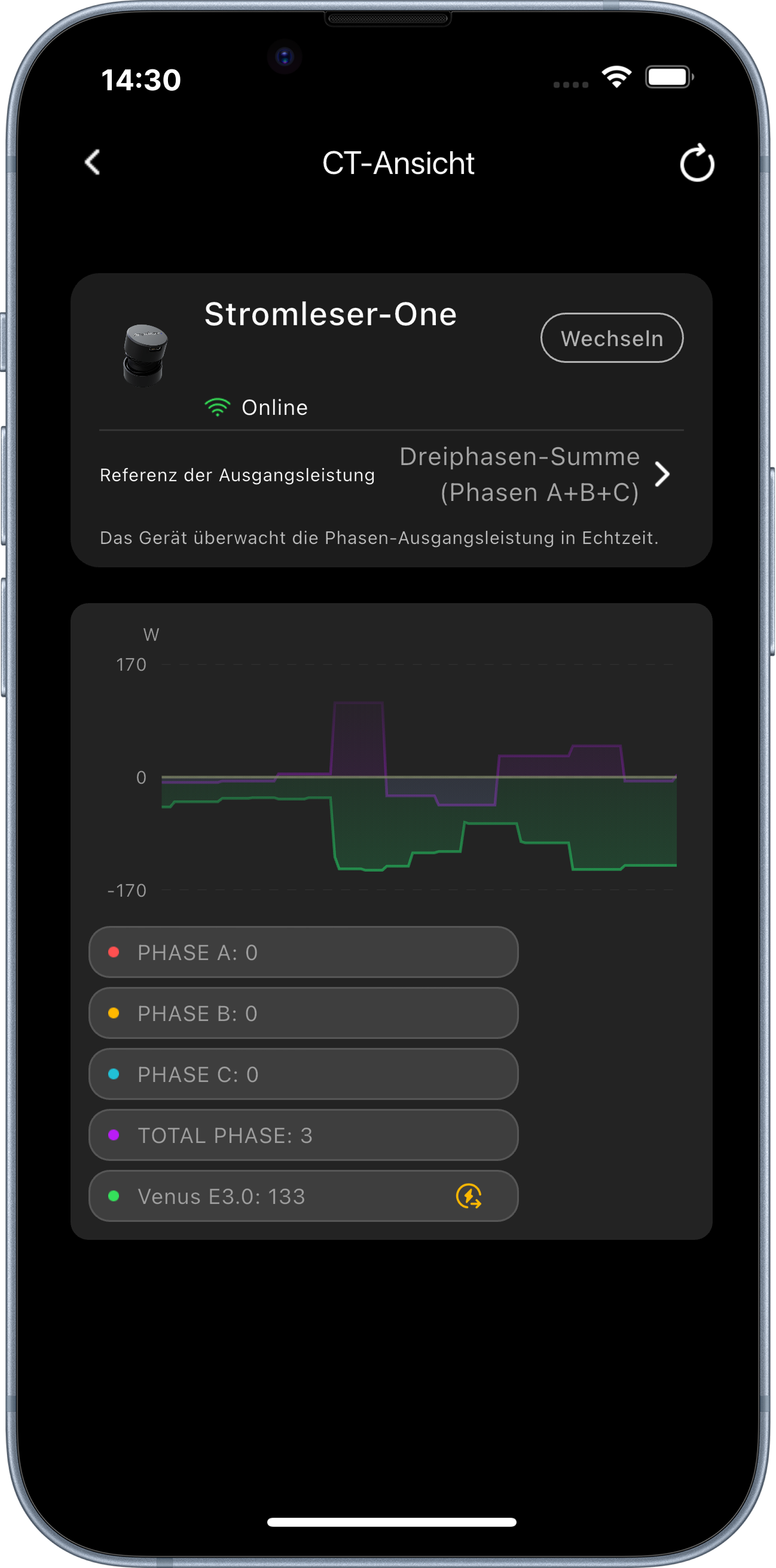
The stromleser.one now shows your live data under CT in the overview and is actively communicating with your Marstek storage — zero feed-in is now enabled.
All data and charts from the stromleser.one remain fully visible in the energieleser app.