Indevolt Integration
You can integrate your stromleser.one as a meter reader into your Indevolt Home Energy Hub. The connection runs entirely over your local network: you add the stromleser.one as a device in the Indevolt app and then link it to your Home Energy Hub. This makes your meter data available to the Indevolt system in real time so that zero feed-in can be implemented. The following steps explain how it all works.
This integration is only possible with stromleser.one devices.
Requirements
Before you start, make sure that:
- your stromleser.one is installed at the meter and set up in the energieleser app
- the stromleser.one is online in the energieleser app and delivering live data
- your Indevolt Home Energy Hub is fully installed and set up in the Indevolt app
- your smartphone, stromleser.one and Indevolt Home Energy Hub are on the same Wi-Fi network
Before installation, keep in mind that your electricity meter must be unlocked using the PIN so that the stromleser.one can read and transmit the data in real time. You can find out how this works here.
Finding the device IP and device ID
You need two details of your stromleser.one for the setup:
- the device IP (e.g.
192.168.1.100) - the device ID (e.g.
STROM_ONE_7211674295)
You can find both in the energieleser app under the device information of your stromleser.one.
Make a note of both values – you will need them in step 5 below.
Step 1: Install the Indevolt app
- If you do not have the Indevolt app yet, install it via the following QR code
- Scan the QR code with your smartphone camera and follow the installation
Make sure your Indevolt device is already fully set up in the Indevolt app before you start the stromleser.one integration. Set up your Home Energy Hub according to the Indevolt instructions. Without a configured Indevolt device you will not be able to link the stromleser.one in step 6.
Step 2: Add a device
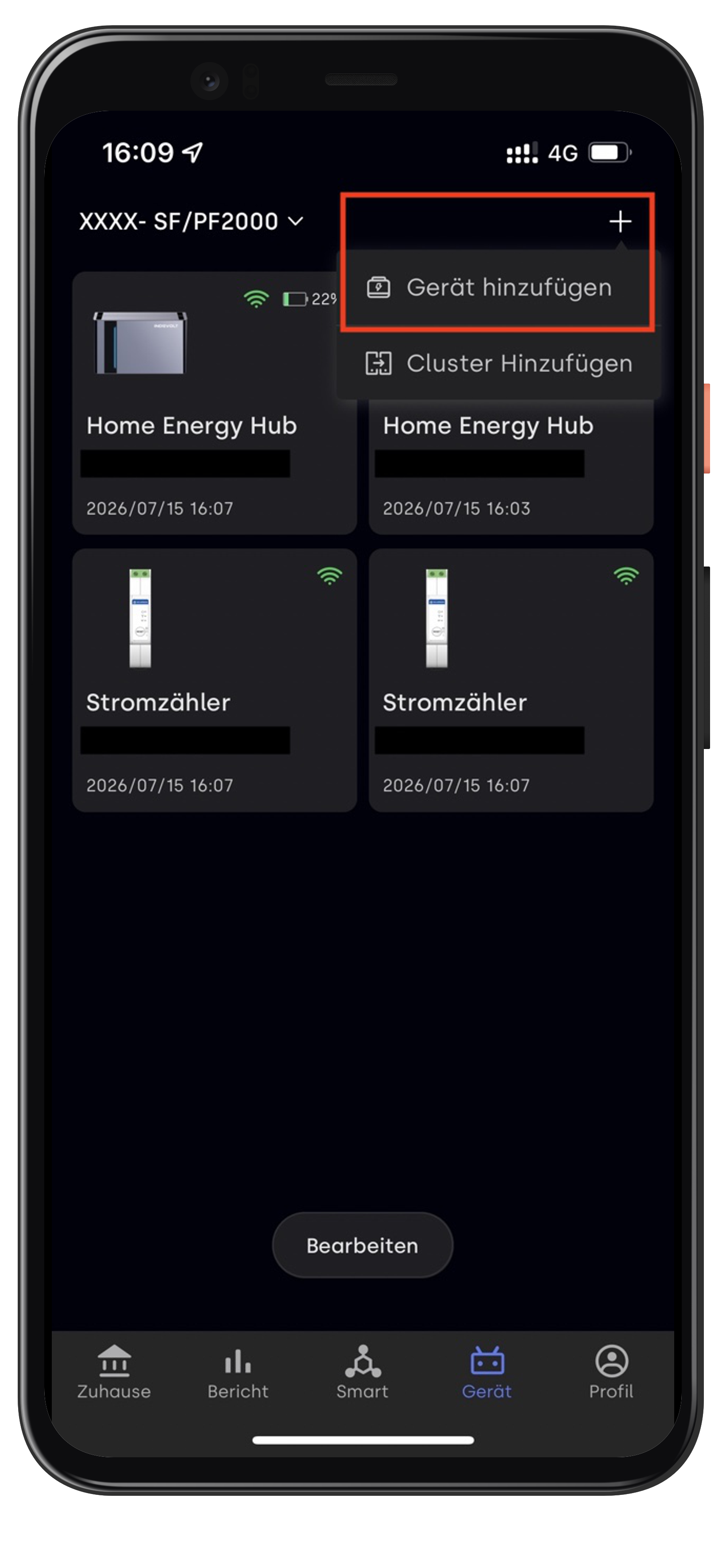
- Open the Indevolt app and switch to Device in the bottom tab bar
- Tap the + in the top right
- Select Add device
Step 3: Select Stromleser
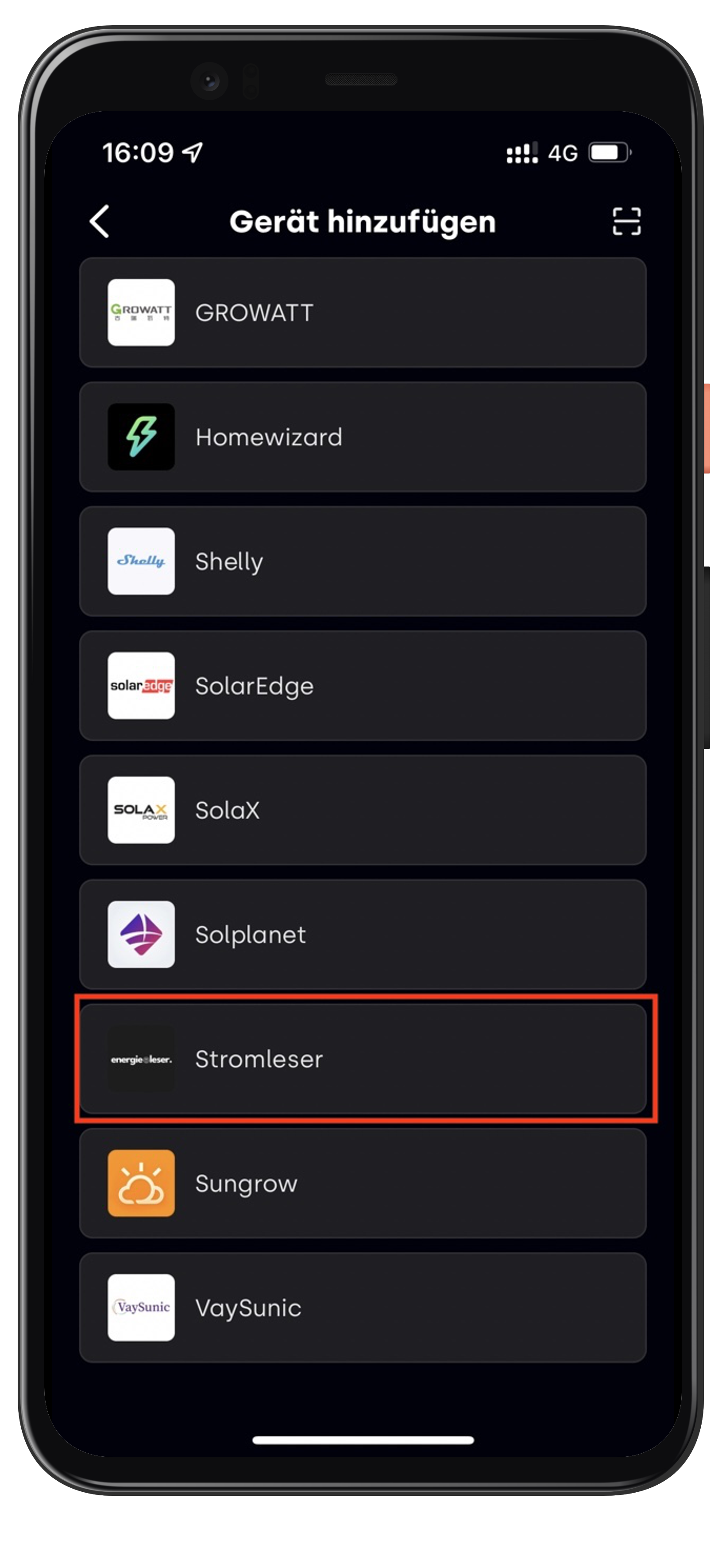
- Select Stromleser from the list of manufacturers
Step 4: Select stromleser.one
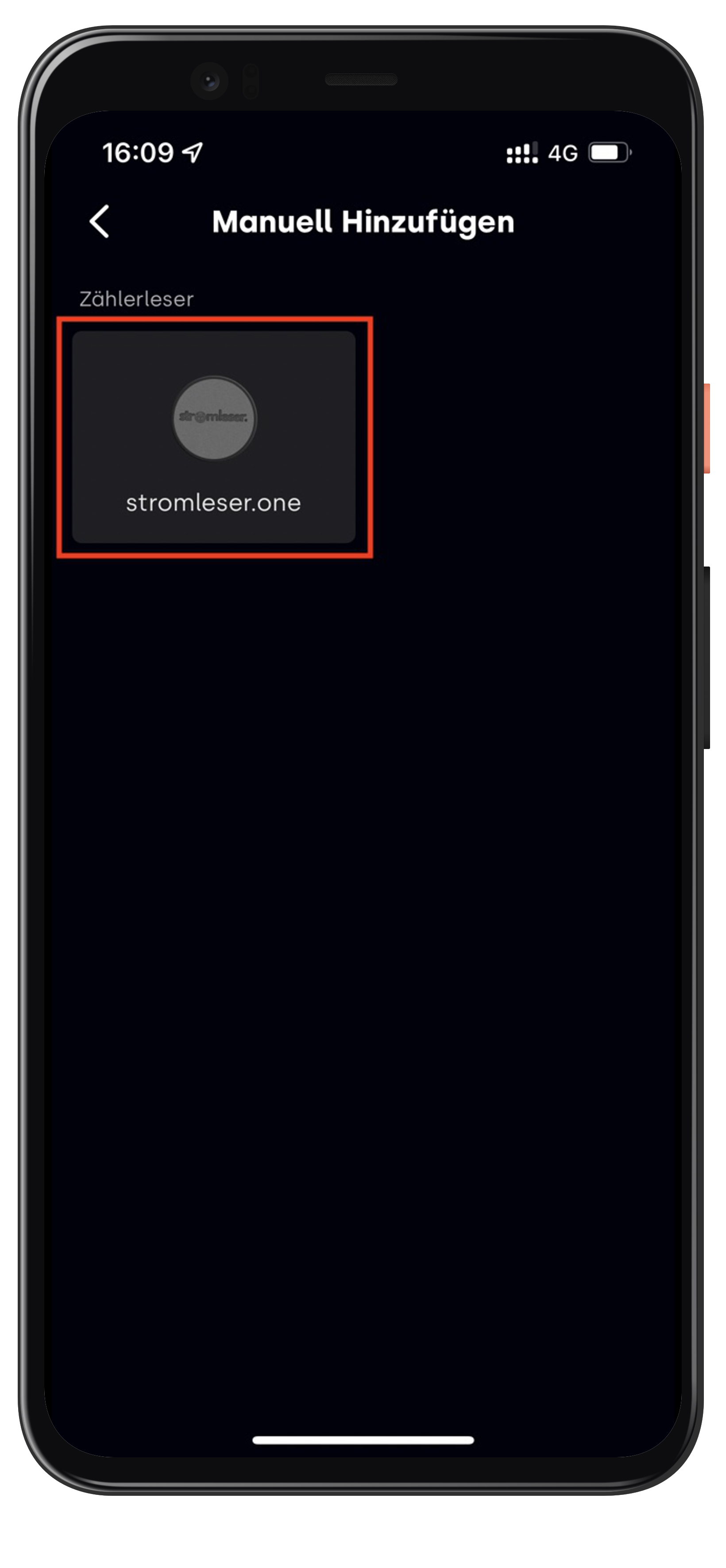
- Select stromleser.one under Meter reader
Step 5: Enter the device IP and device ID
- Enter the IP address of your stromleser.one under Device IP
- Enter the device ID of your stromleser.one under Device ID
- Tap Next
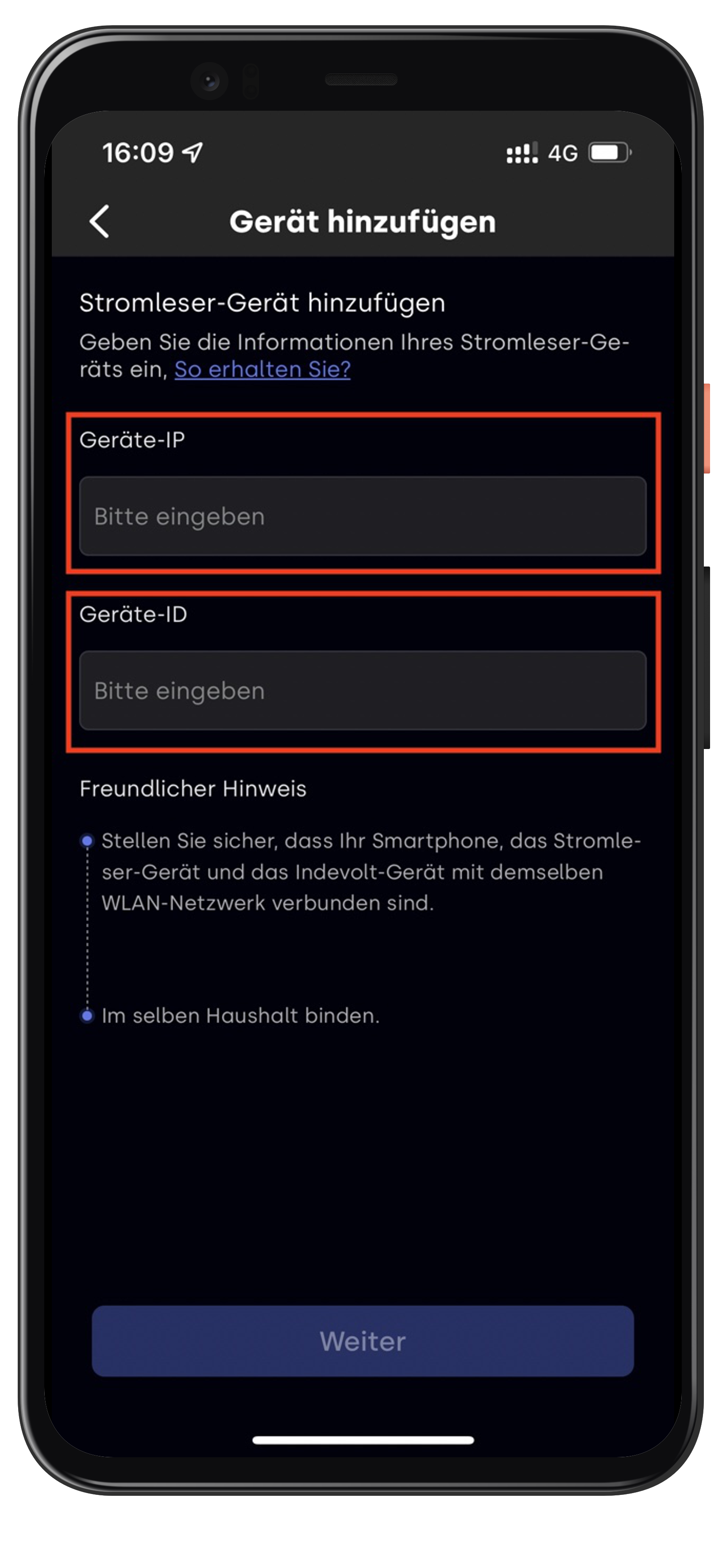
You can find both values in the energieleser app under the device information of your stromleser.one.
Step 6: Link the devices
- Under Available devices, select the Home Energy Hub you want to link the stromleser.one to
- Tap Link
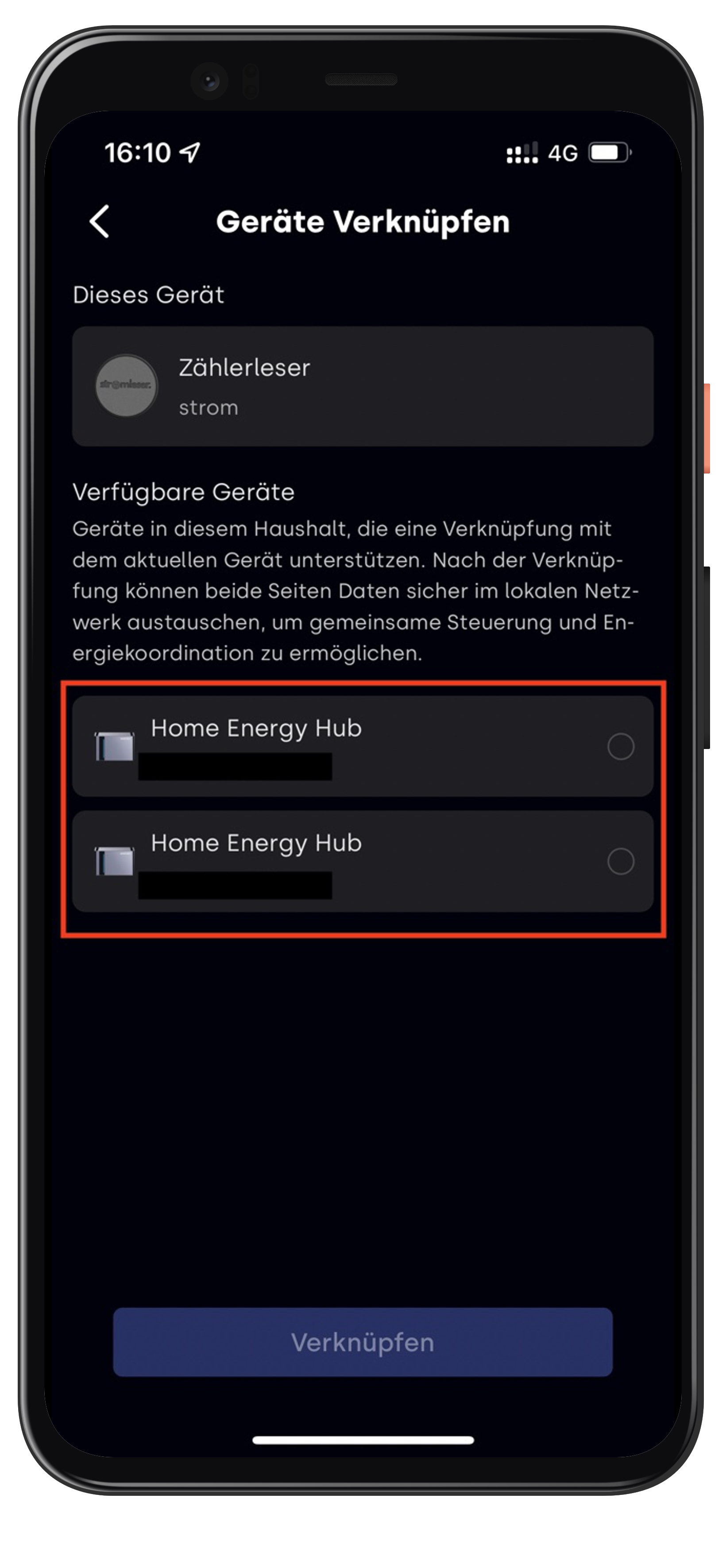
Only devices that are in the same household and support linking with the stromleser.one are shown.
Step 7: Wait for the link to be established
- The Indevolt app now sets up the link – this may take a moment
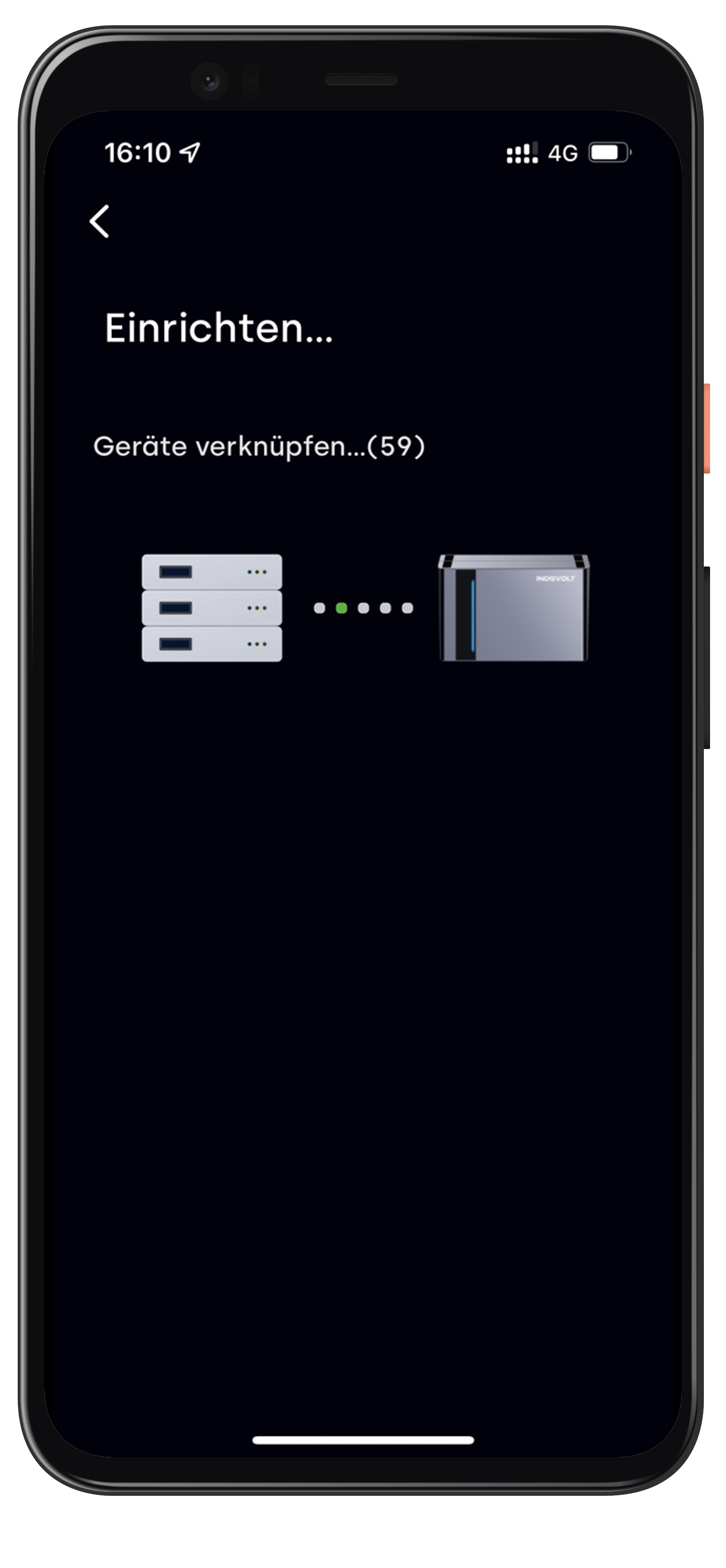
- The stromleser.one is then linked to your Home Energy Hub
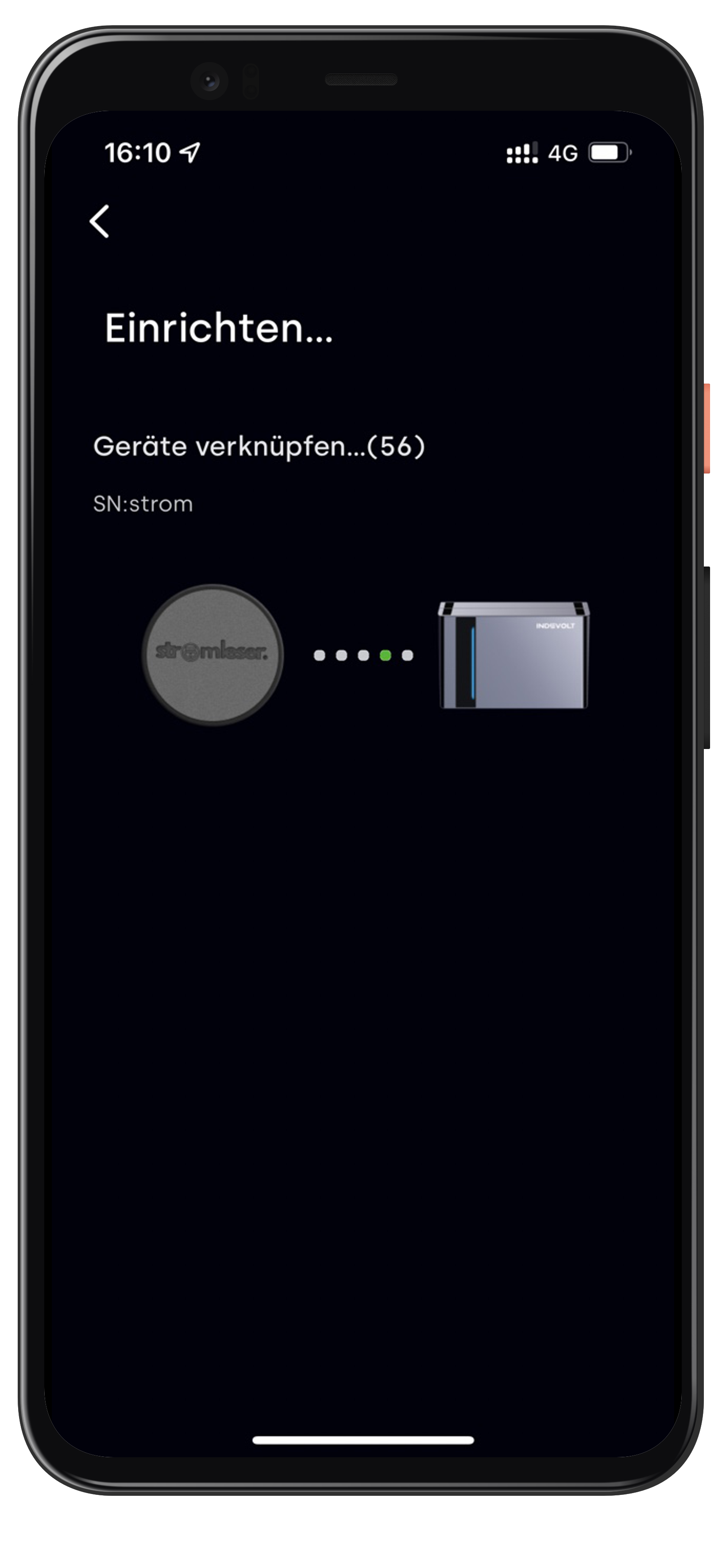
Do not close the app during setup and keep your smartphone on the same Wi-Fi network.
All done!
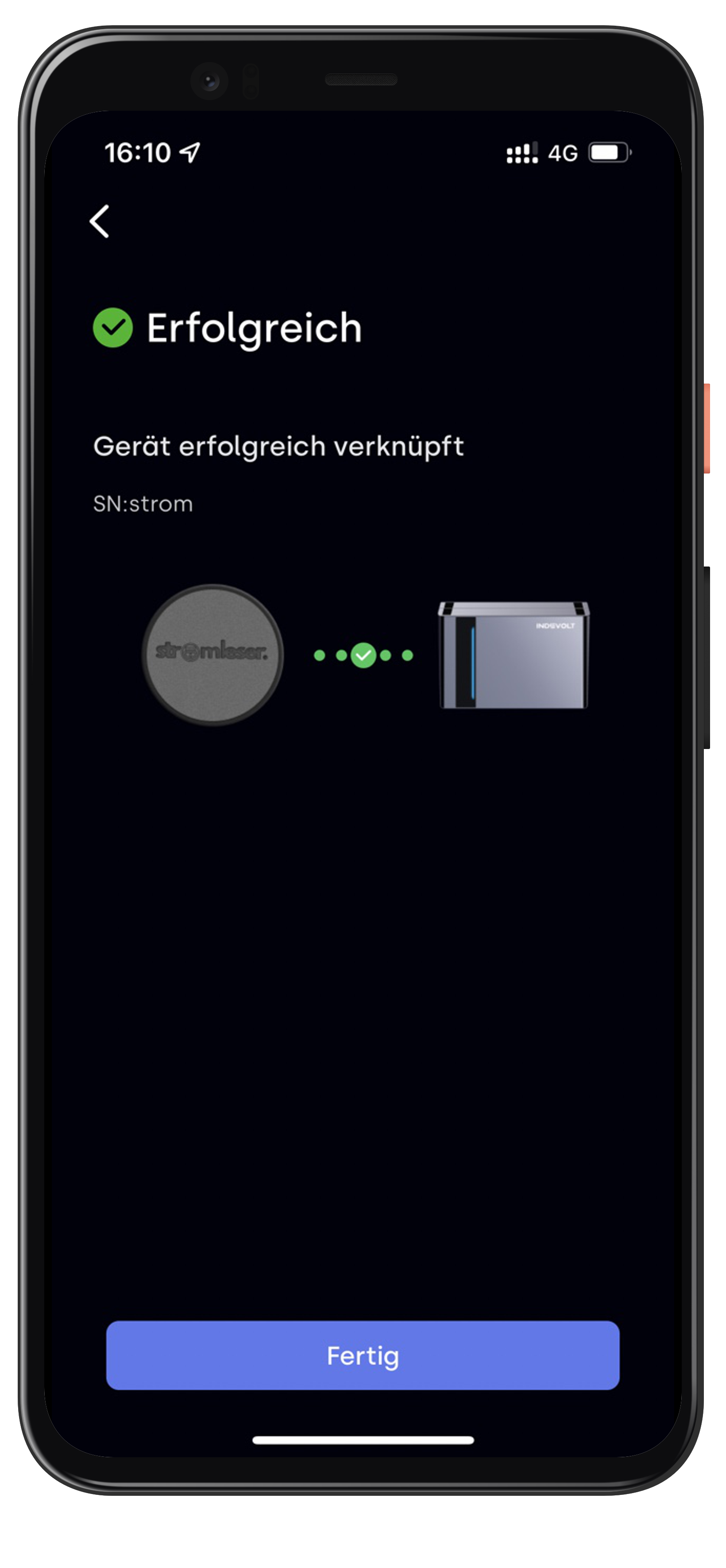
- As soon as Successful – Device linked successfully is shown, the connection is established
- Tap Done
Your stromleser.one now appears as a meter reader in the device overview:
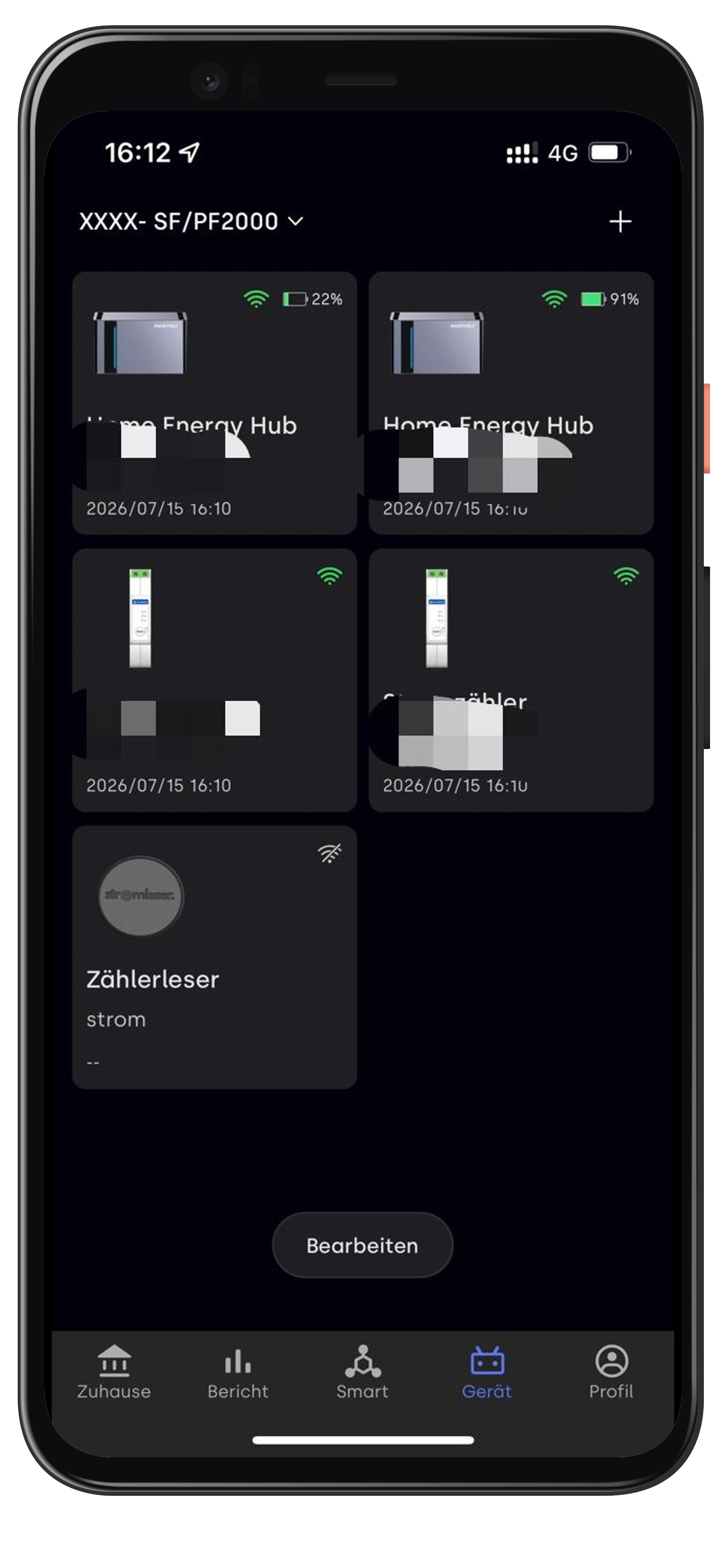
Your stromleser.one now transmits your meter data locally to the Indevolt Home Energy Hub.
Of course, all data and charts of the stromleser.one remain visible in the energieleser app.
Common problems
stromleser.one is not found
- Make sure that your smartphone, stromleser.one and Home Energy Hub are on the same Wi-Fi network
- Check whether the stromleser.one is online in the energieleser app
- Check the device IP you entered – if your router assigns IP addresses dynamically, it may have changed
No Home Energy Hub in the list
- Only devices in the same household are shown – check whether your Home Energy Hub is set up in the Indevolt app and online
No data in the Indevolt system
- Check whether the stromleser.one is online in the energieleser app and delivering live data
- Make sure that your electricity meter is unlocked via PIN