Multimeter setup
Step 2.2: Create the Combined Script for Two TTL Heads
Combine individual scripts so Tasmota reads data from two meters.
Update the Meter Count
>M 1
to
>M 2
(The number after M shows how many meters are connected — 2 for two meters.)
Add the Second Meter Line
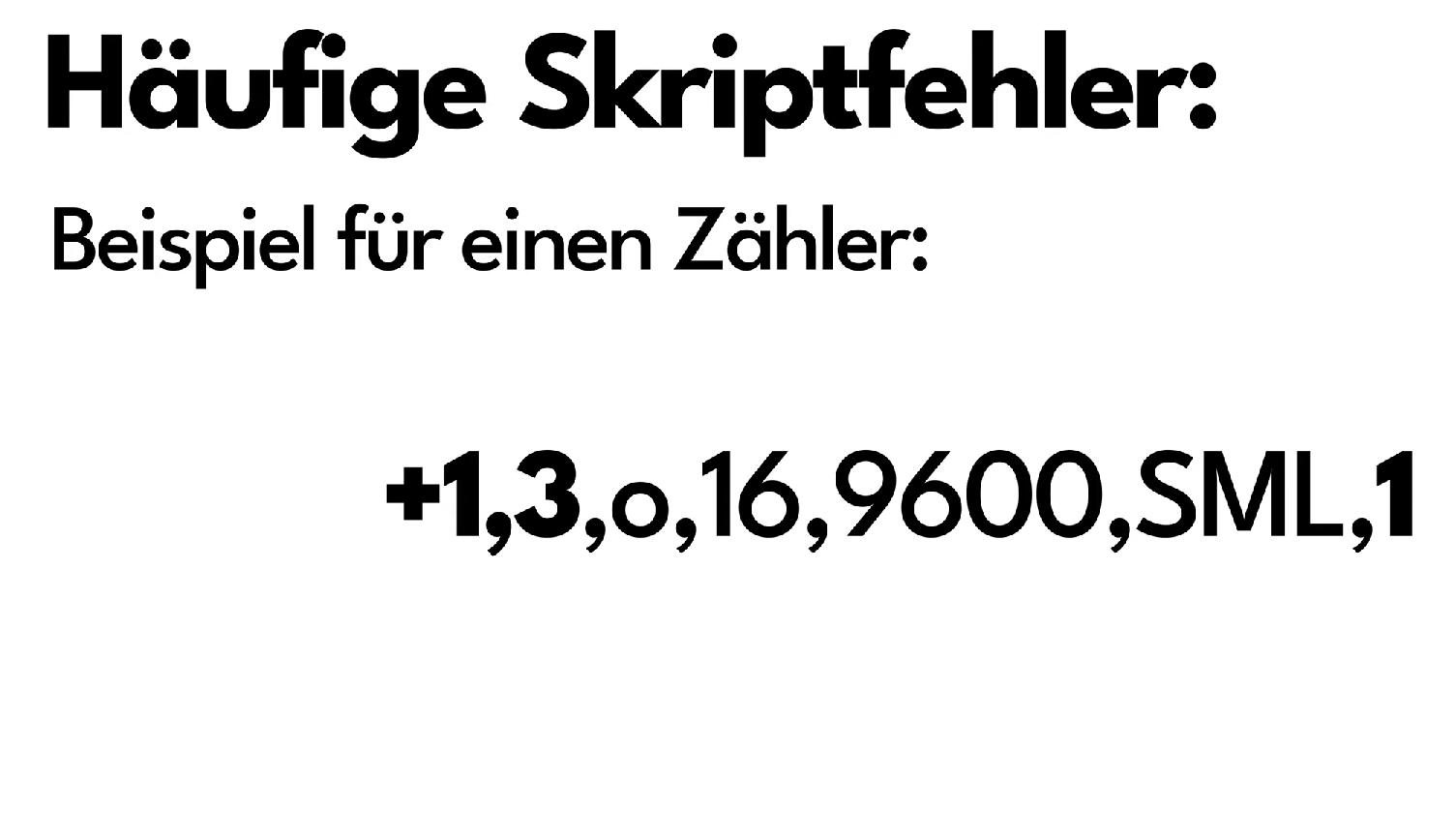
You already have this line for the first meter:
+1,3,s,16,9600,MT175,1
+2,5,s,16,9600,MT175,4
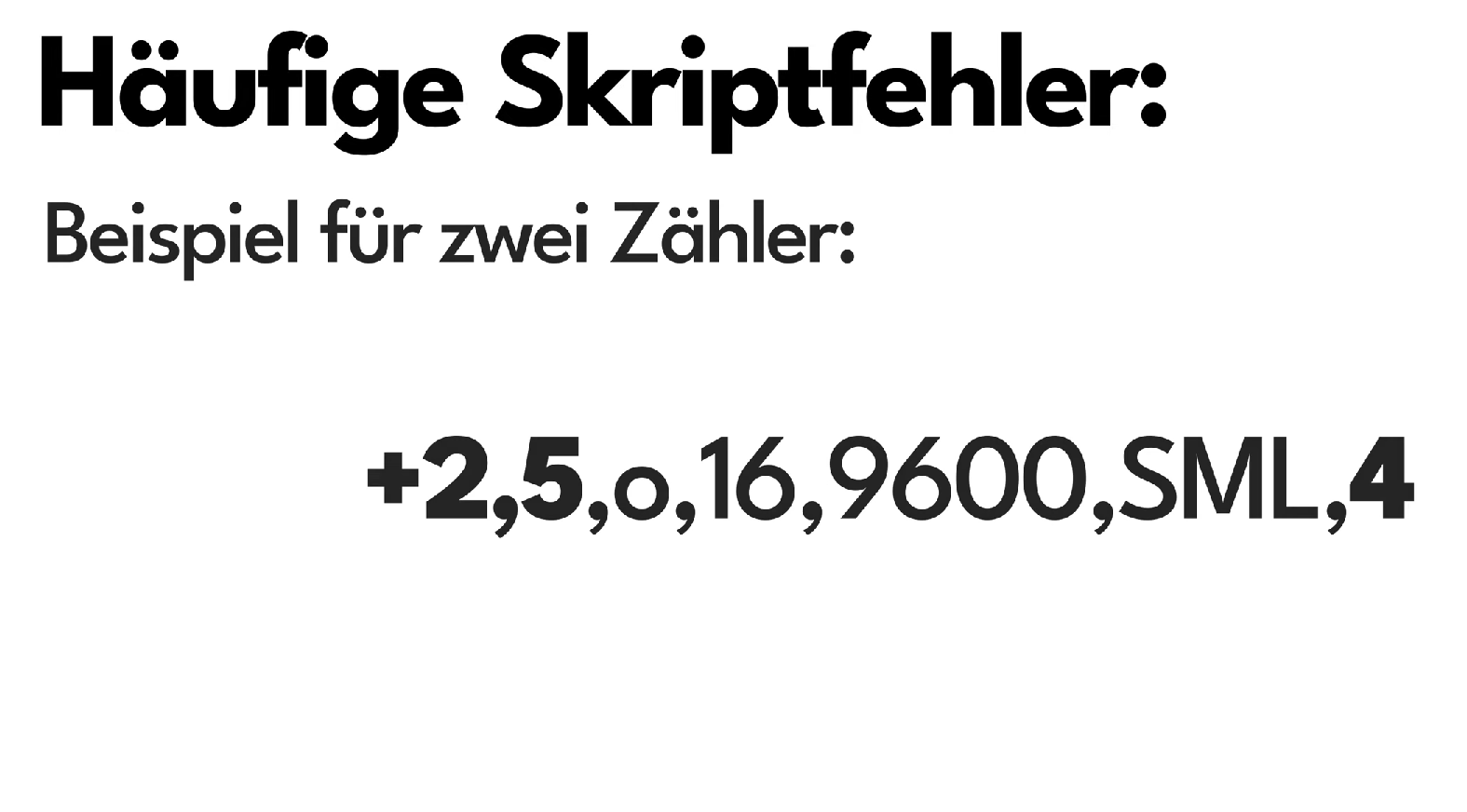
+2 = second meter, 5/4 = IO pins.
Copy Data Lines and Adjust Meter Number
Copy first meter’s lines, change 1, → 2, and update names (e.g., E_in → E_in2).
2,77070100010800ff@1000,Verbrauch,kWh,E_in2,3
2,77070100020800ff@1D,Einspeisung,kWh,E_out2,3
2,77070100100700ff@1,akt. Leistung,W,Power2,0
Final Combined Script
>D
>B
->sensor53 r
>M 2
+1,3,s,16,9600,MT175,1
+2,5,s,16,9600,MT175,4
1,77070100010800ff@1000,Verbrauch,kWh,E_in,3
1,77070100020800ff@1000,Einspeisung,kWh,E_out,3
1,77070100100700ff@1,akt. Leistung,W,Power,0
2,=h--
2,77070100010800ff@1000,Verbrauch,kWh,E_in2,3
2,77070100020800ff@1D,Einspeisung,kWh,E_out2,3
2,77070100100700ff@1,akt. Leistung,W,Power2,0
#
Next Step
After successful mounting, continue with the WiFi setup.