stromleser.tasmota Home Assistant Integration
You've purchased a stromleser.tasmota and now want to perfectly integrate it into your Home Assistant? Great idea! In this article, I'll show you step by step how to accomplish this easily.
Before you start, please make sure that your stromleser.tasmota is already connected to the internet. You need the local IP address of your Home Assistant system.
If you don't know the local IP of your Home Assistant, simply install the practical "Local IP" extension from the Home Assistant Store – this way you can find it out quickly. Further documentation
Step 1: Install MQTT Broker
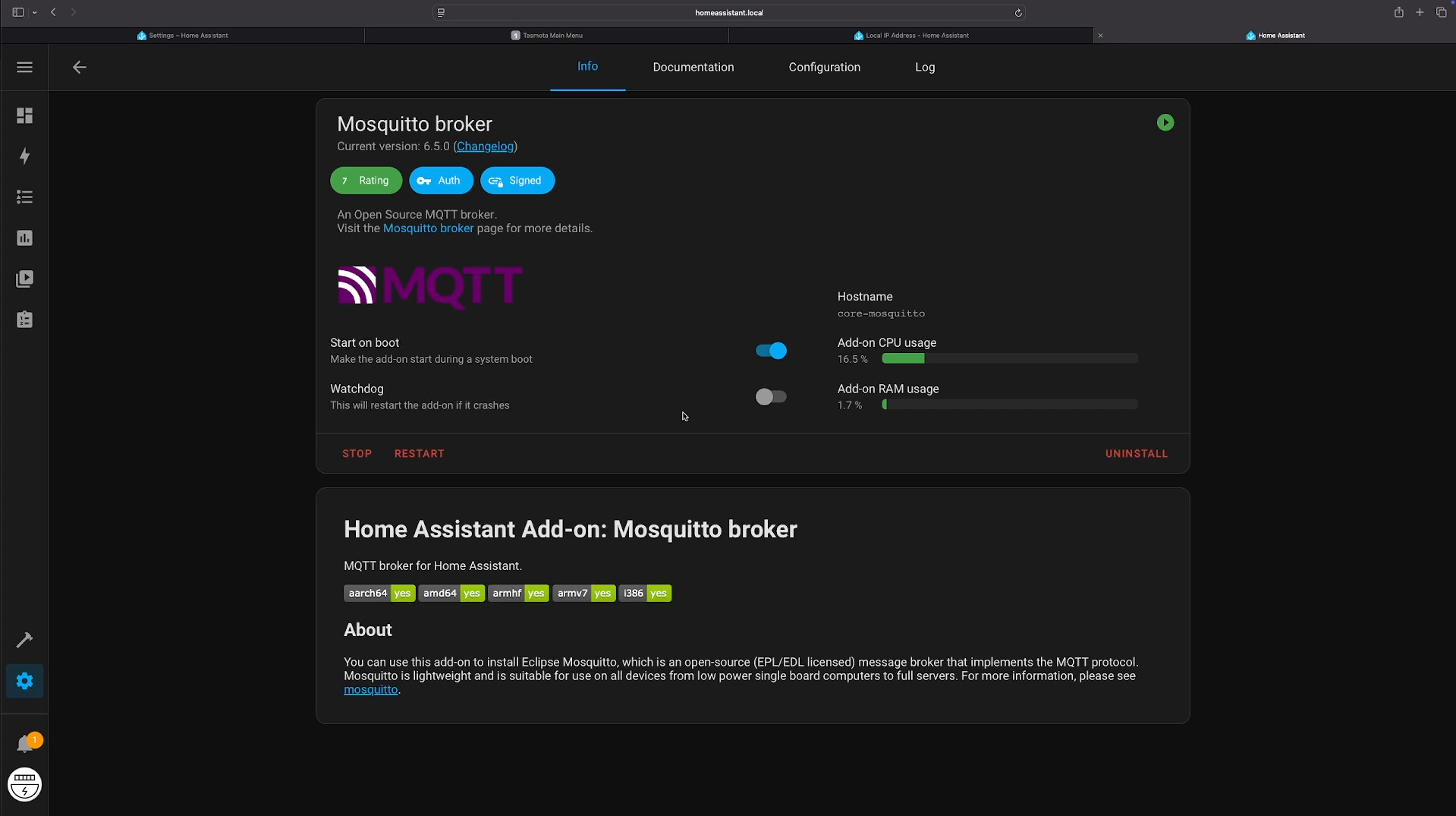
For your device to communicate with Home Assistant, you need a Mosquitto MQTT Broker.
- Open your Home Assistant
- Go to Settings → Add-ons
- Search for Mosquitto Broker and install it
- Enable the options "Start on boot" and then click "Start"
Step 2: Create User for MQTT
Now create a user that your device can use to access MQTT:
- Go to Settings → People → Add Person
- Name:
mqtt-user - Password: Choose a secure password
- Click Create
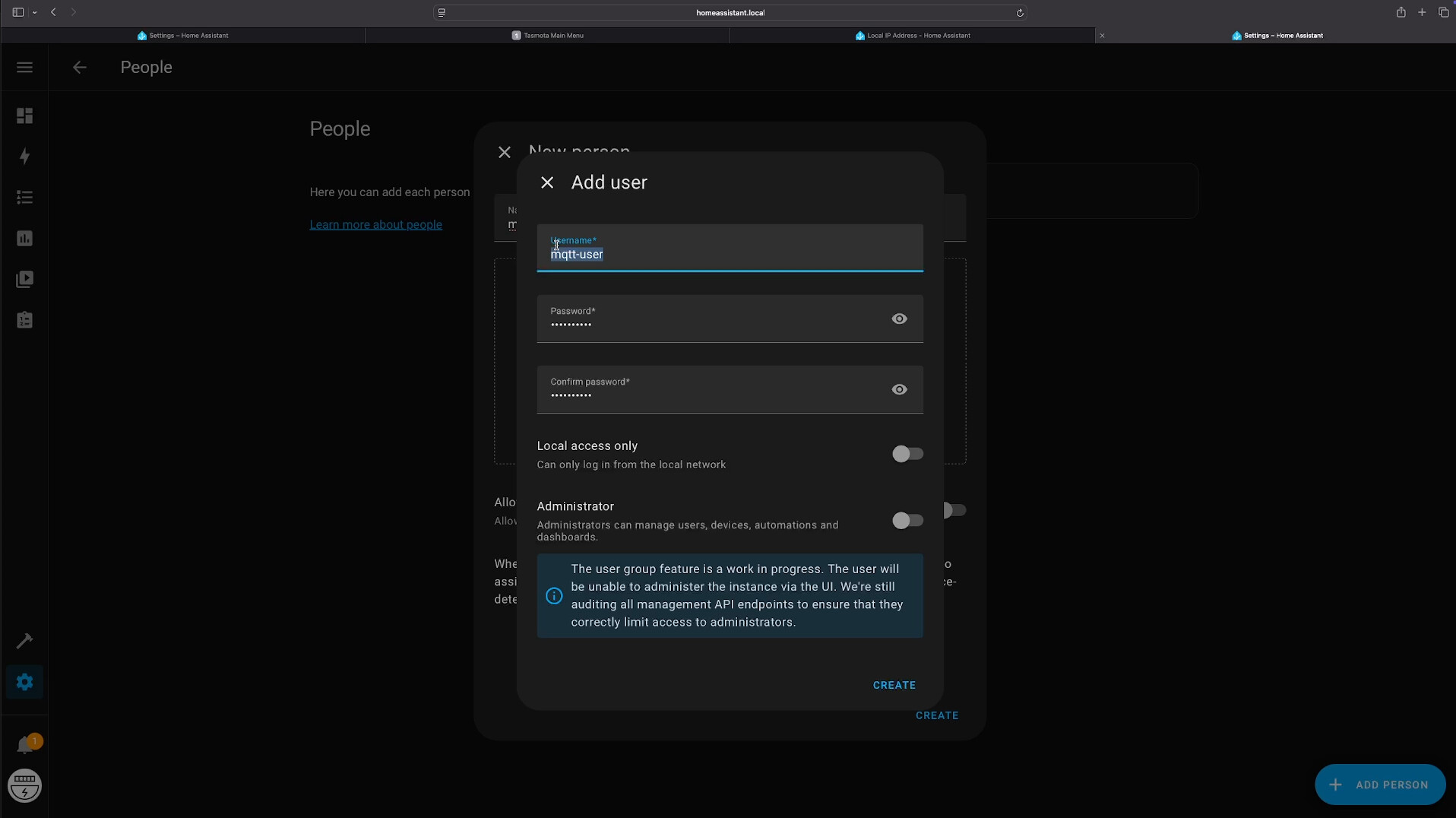
Use a strong password for the MQTT user, as it will be used for device communication.
Step 3: Restart Home Assistant
For everything to be applied correctly, restart your Home Assistant once:
Settings → System → Hardware → Restart
Step 4: Set up MQTT Integration
Now let's make sure MQTT is configured correctly:
- Go to Settings → Devices & Services → Add Integration
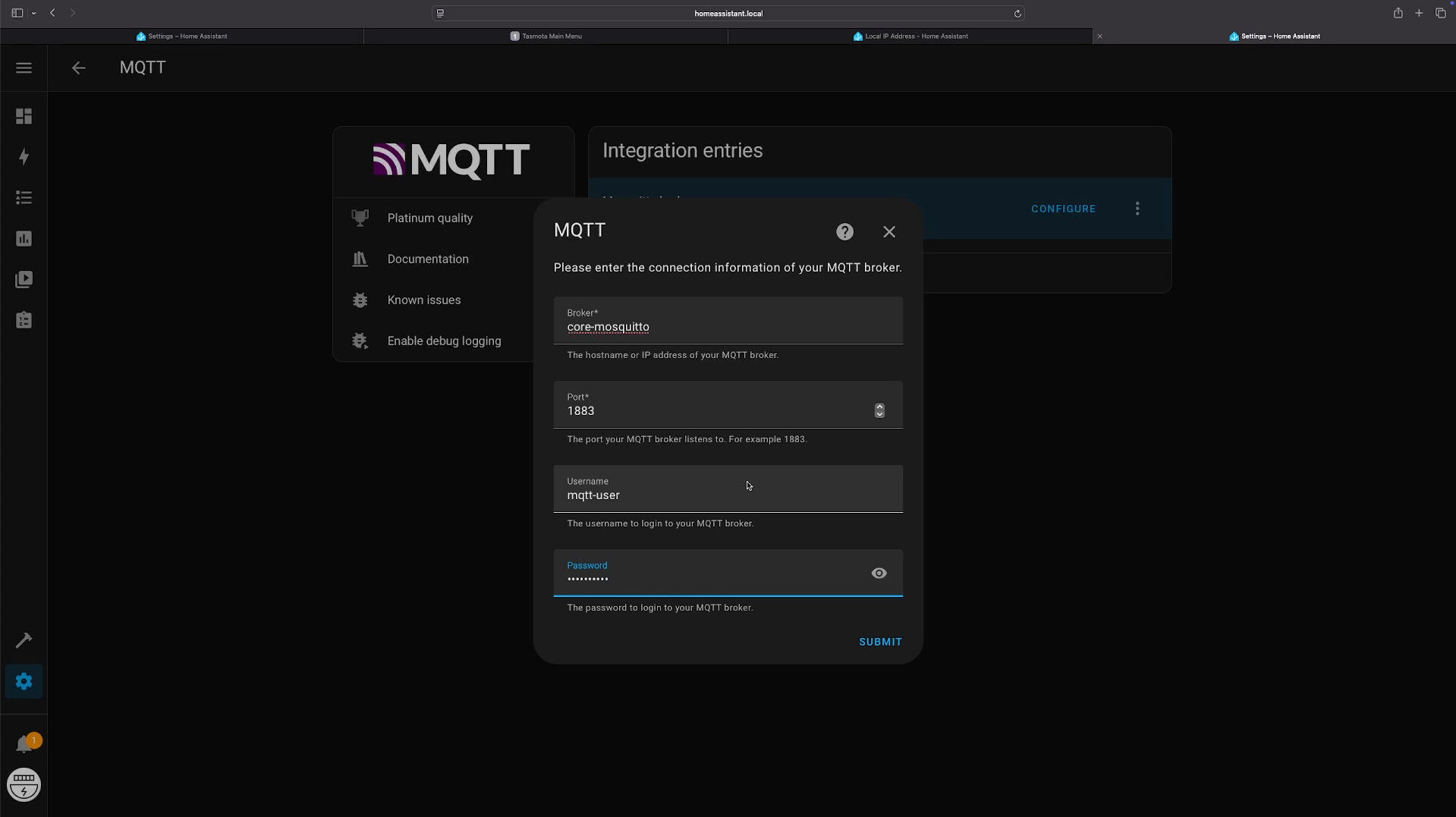
- Search for MQTT, click on it and select reconfigure
- Enter the following data:
- Broker:
core-mosquitto - Port:
1883 - Username:
mqtt-user - Password: the password you set
- Broker:
- Then click Save
Step 5: Add Tasmota Integration
Now you can easily integrate Tasmota:
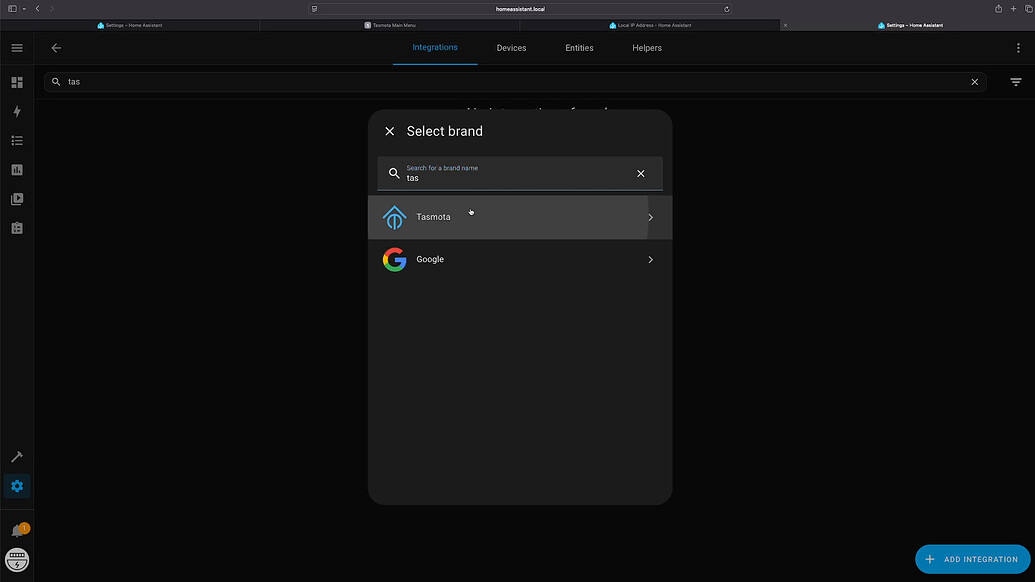
- Go to Settings → Devices & Services → Add Integration.
- Search for Tasmota and add it.
Step 6: Configure Tasmota Stromleser
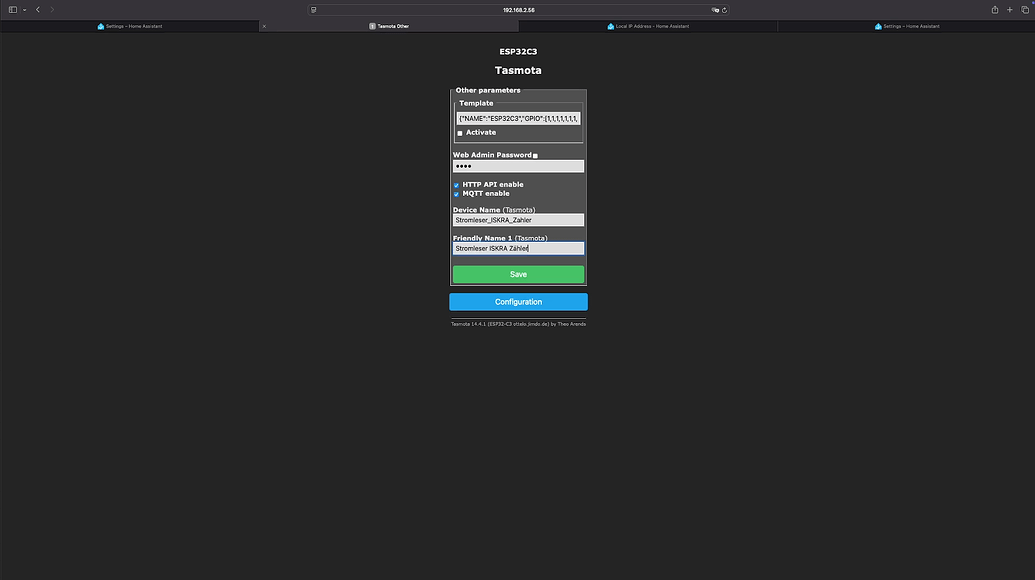
Now, switch to the web interface of your Stromleser (use its local IP address):
- Open the Tasmota web interface (
http://<stromleser-ip>) - Click on Configuration → Configure Other
- Assign suitable names, e.g.:
- Device Name:
Stromleser_home - Friendly Name:
Stromleser Home
- Device Name:
- Make sure to activate Activate MQTT (check the box!)
- Confirm with Save.
Step 7: Configure MQTT in Tasmota
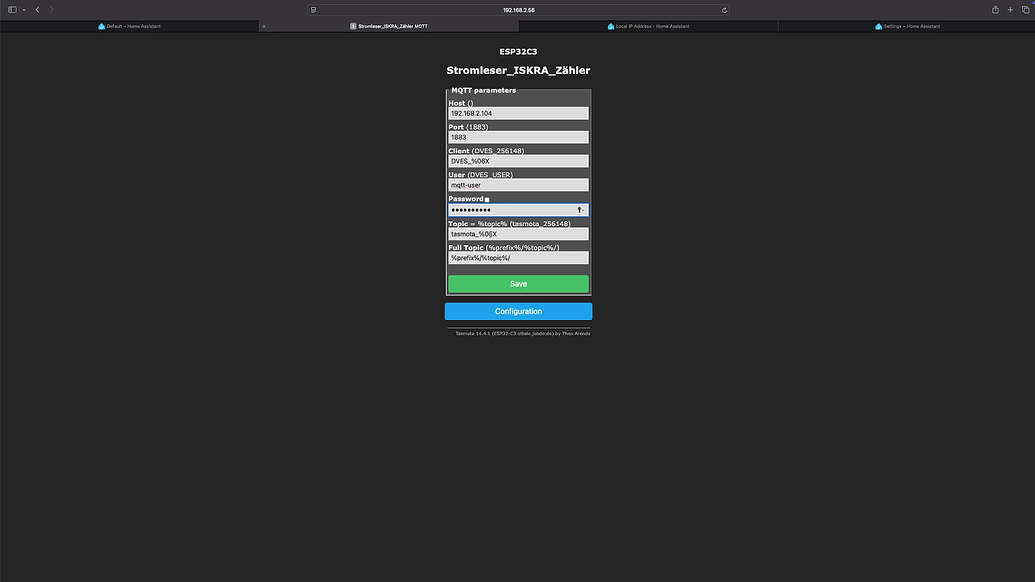
Now, connect your Stromleser to your MQTT broker in Home Assistant:
- Go to Configuration → Configure MQTT again.
- Enter the following:
- Host:
local IP address of Home Assistant(which you found via the plugin) - Username:
mqtt-user - Password:
your chosen password
- Host:
- Confirm with Save again.
Done! Your Stromleser is now connected to Home Assistant. You can now find it clearly under Settings → Devices & Services → Tasmota.
Verify Installation
After these steps, you can verify that everything is working correctly:
- Go to Settings → Devices & Services
- You should see the MQTT Integration as "Configured"
- The Mosquitto Broker should show as "Running" under Add-ons
- Your Tasmota Stromleser should be visible under Settings → Devices & Services → Tasmota
Important Credentials
After this setup, you now have the following credentials that you need for your stromleser.tasmota configuration:
- Home Assistant IP Address
- MQTT Username:
mqtt-user - MQTT Password: your chosen password
- MQTT Port:
1883
These credentials are entered in the Tasmota Dashboard (Step 7).
Frequently Asked Questions and Quick Solutions
Here are a few quick tips if something doesn't work right away:
MQTT Broker Won't Start
- Check if sufficient memory is available
- Restart Home Assistant
- Check the add-on logs for error messages
Integration Not Found
- Make sure the MQTT Broker is running
- Verify credentials
- Try removing and re-adding the integration
Connection Errors
- Check the Home Assistant system IP address
- Ensure port 1883 is not blocked
- Check firewall settings
Home Assistant doesn't detect my device automatically?
In Tasmota, go to Tools → Console and enter the following command:
SetOption19 0

After that, your device should be detected.
Data transfer too slow/fast?
Adjust the data transfer interval in the Tasmota console. For example, for every 60 seconds:

TelePeriod 60