Setup: Disable the cloud connection
This guide walks you through disabling the cloud connection step by step, so that your stromleser.one runs locally without any cloud connection.
Step 1: Open the web interface
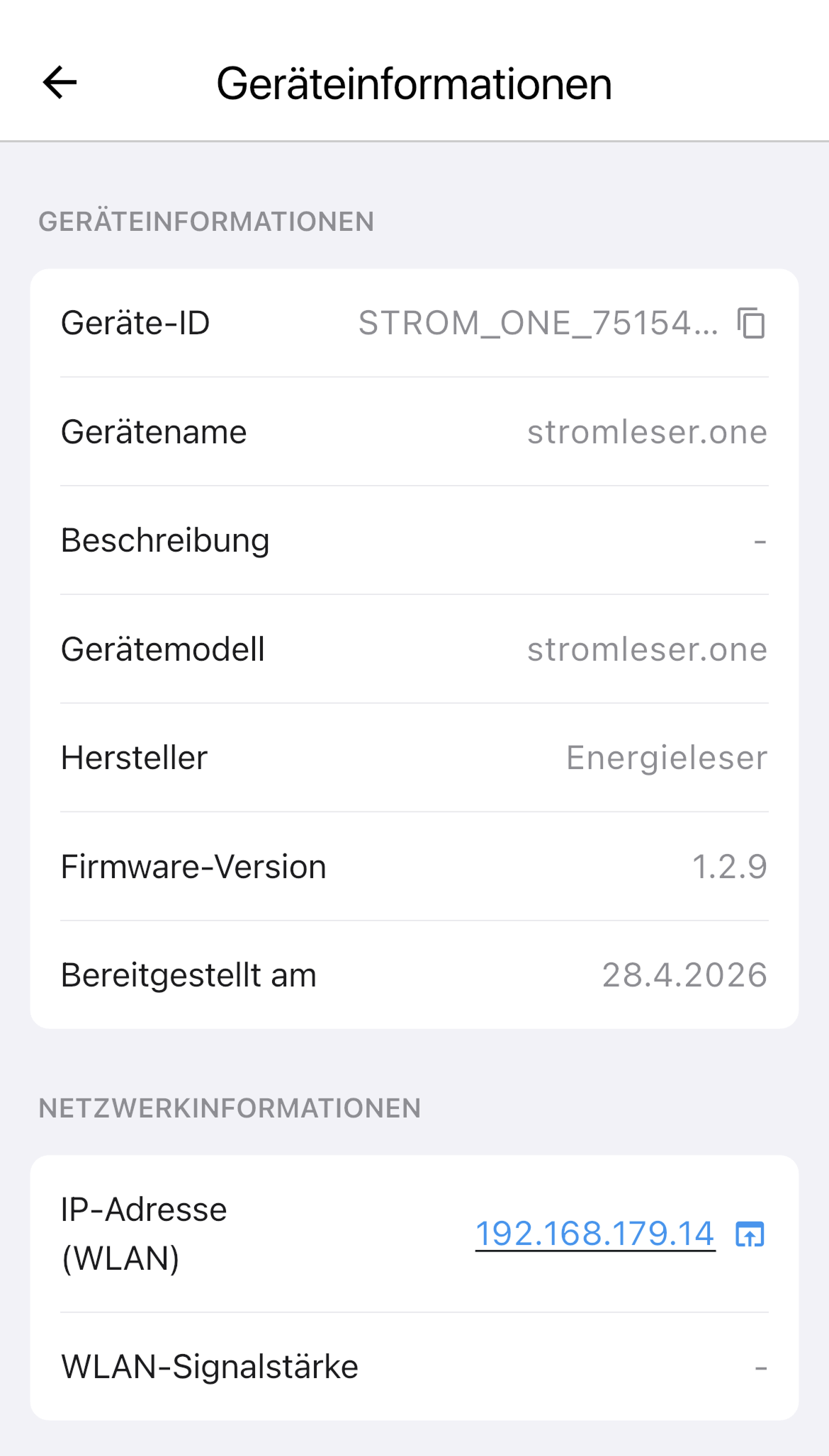
- Find the stromleser.one IP address
- You can find the IP address in your router (device list) or in the energieleser app under device settings.
- Open the web interface in your browser
- In your browser, open
http://<stromleser-one-ip>/ - You should see the local stromleser.one settings page.
- In your browser, open
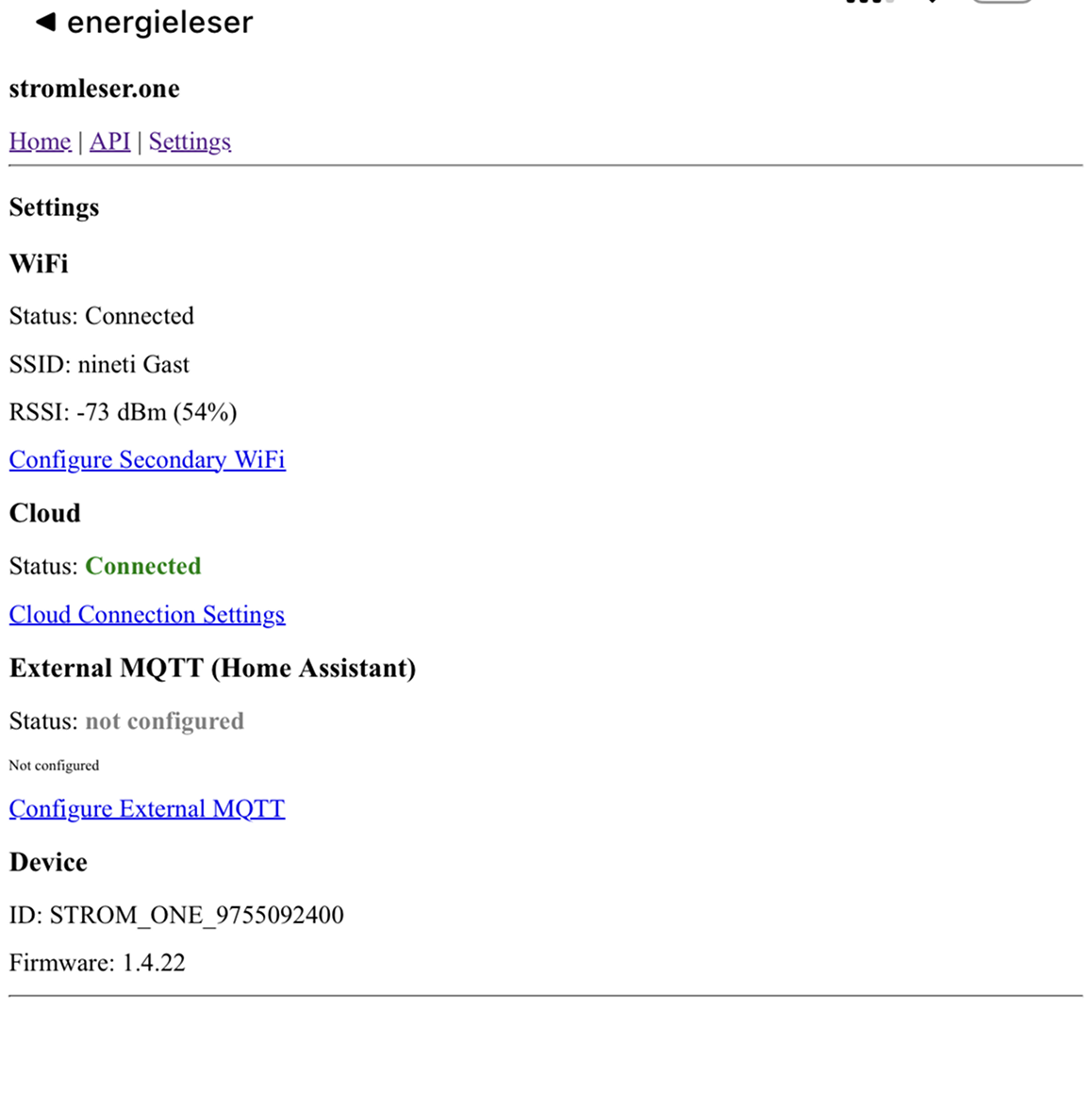
Step 2: Go to Settings
- Click Settings in the navigation.
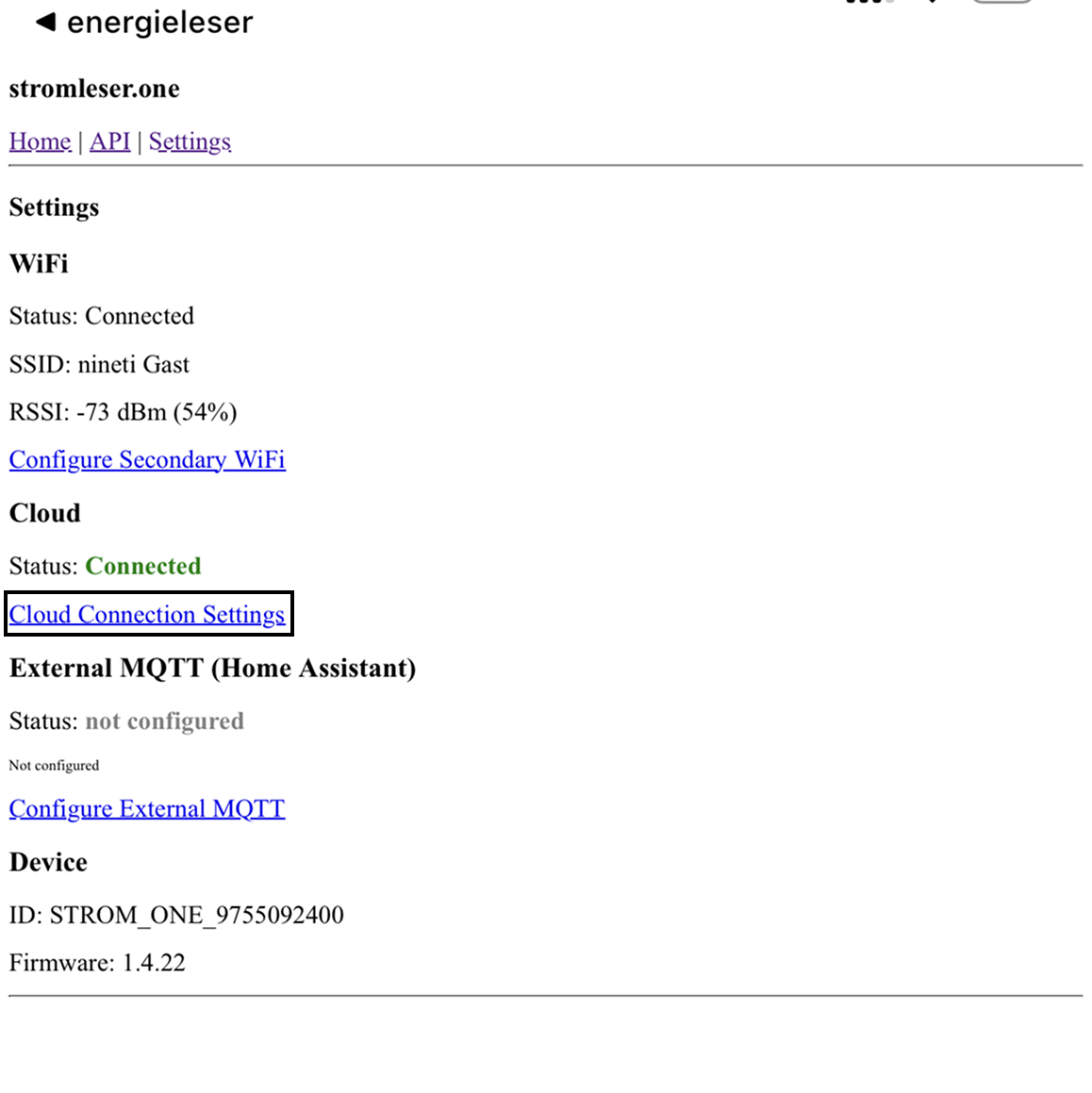
Step 3: Open Cloud Connection Settings
- In Settings you'll see the Cloud section with the current status (e.g.
connected). - Click Cloud Connection Settings.
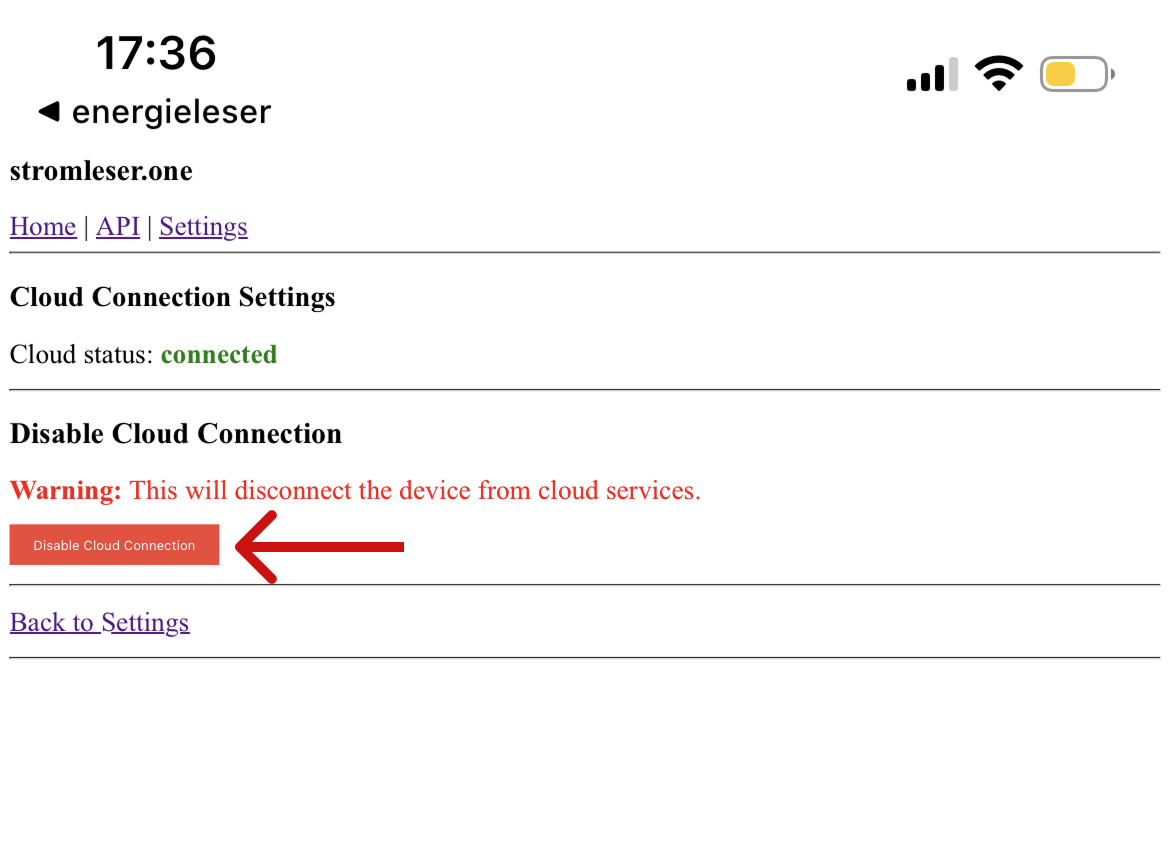
Step 4: Disable cloud connection
- Click on Disable Cloud Connection.
- A warning dialog appears listing the effects:
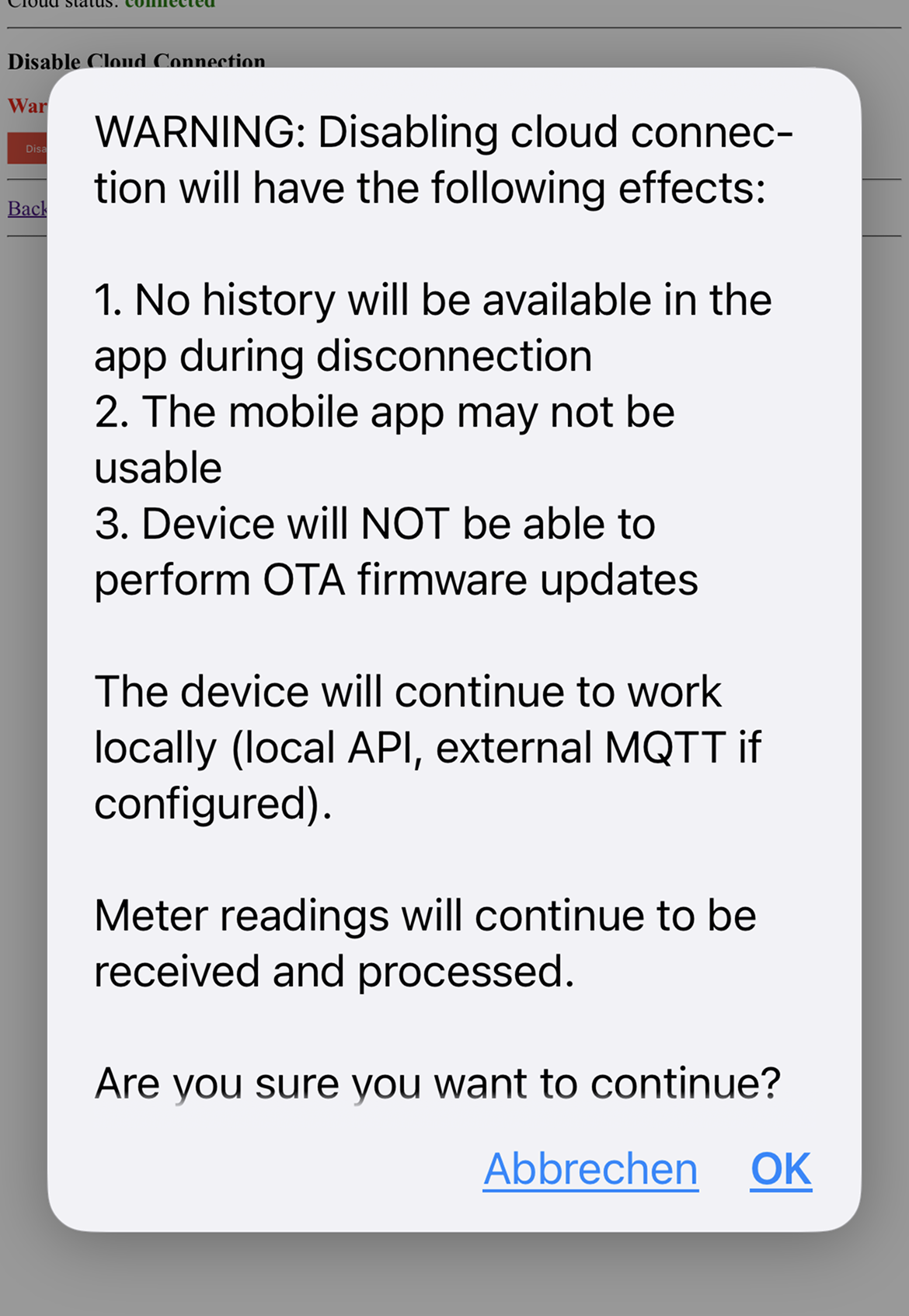
The effects in detail:
- No history will be available in the app during the disconnection.
- The mobile app may not be usable or become limited.
- The device will NOT be able to perform OTA firmware updates
Important: The stromleser.one will continue to work locally (local API, external MQTT - if configured).
- Confirm the dialog to disable the cloud connection.
Step 5: Check the status
After disabling, you'll see:
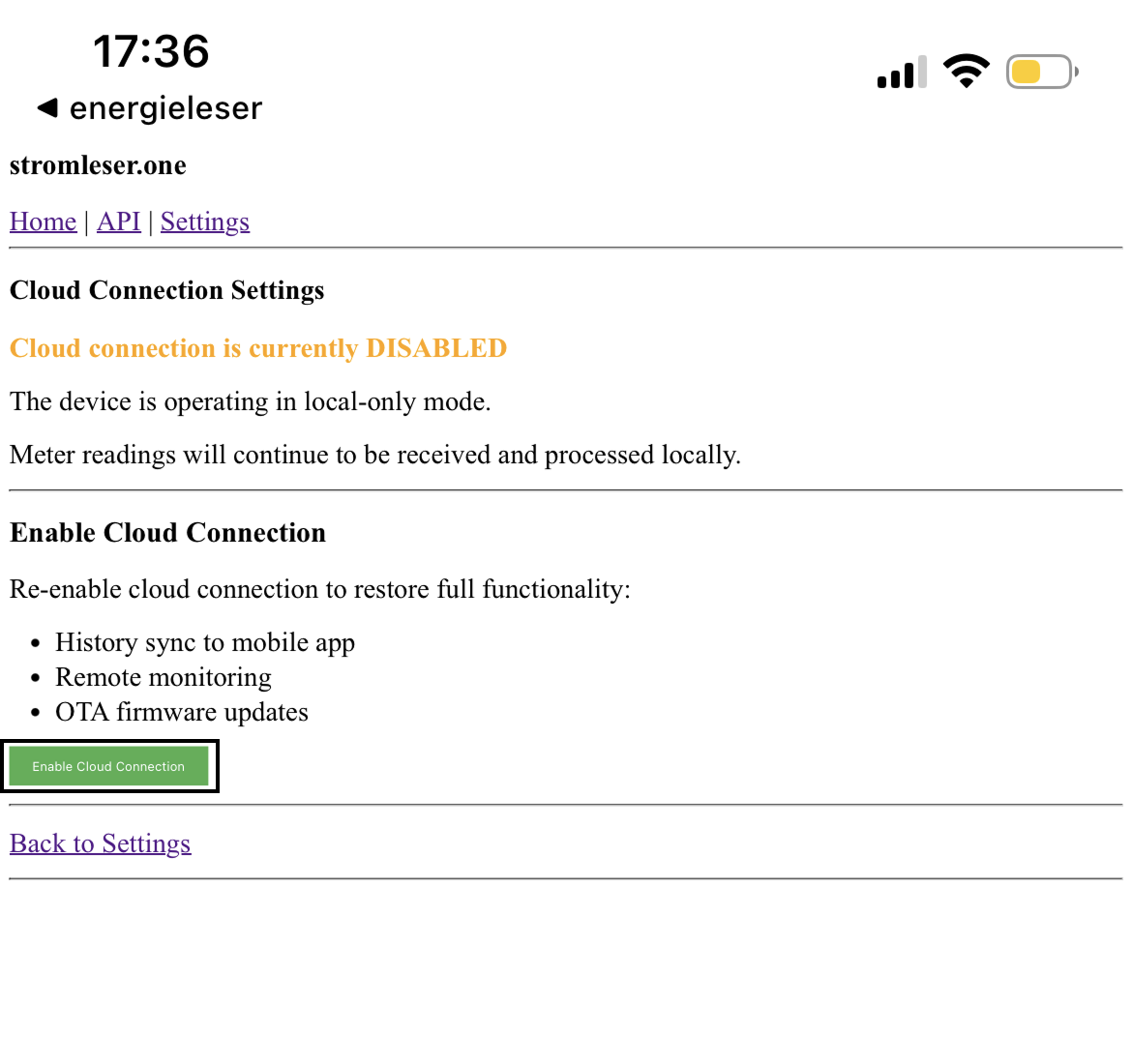
- In Cloud Connection Settings you now see that the cloud connection is now disabled
(for example: "Cloud connection is currently DISABLED"). - A button Enable Cloud Connection appears, which you can use to re‑enable the cloud at any time.
Note: In the general Settings, the cloud status will now state "not configured":
Next steps
After successfully disabling of the cloud connection:
- Your stromleser.one now runs completely locally without cloud connection.
- All readings are continued to be sent via MQTT to Home Assistant (or your MQTT system).
- The local web interface and API remains fully available.