Pairing with the Bridge
- Open the Bridge. Tap your Bridge in the app and add a new meter.
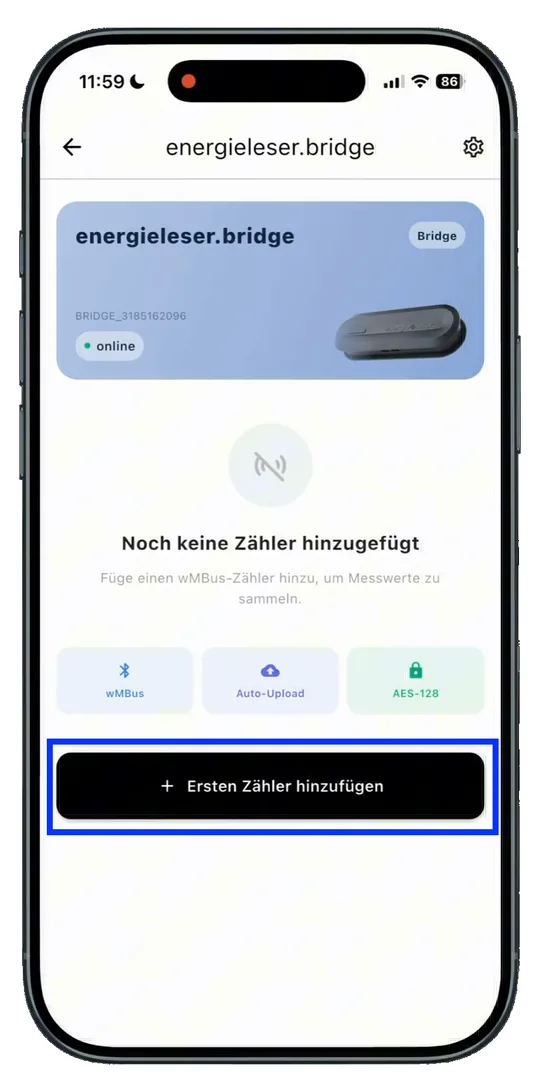
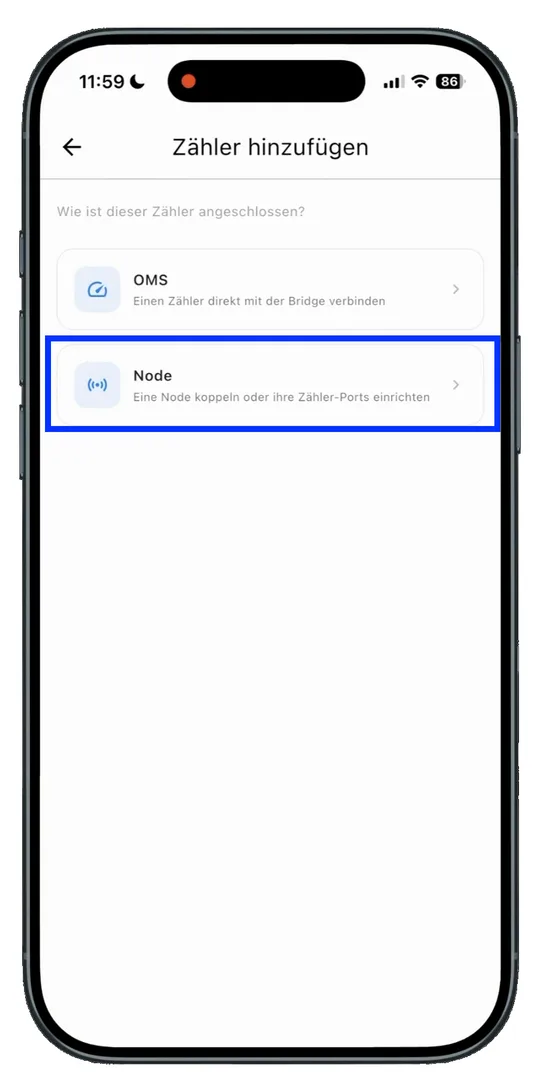
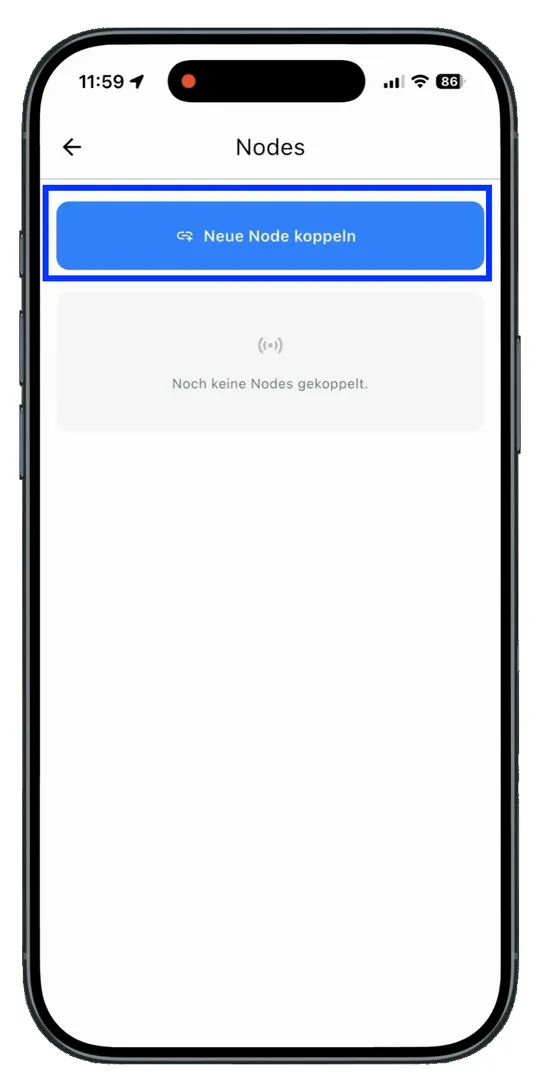
- Choose Node. Choose Node and in the next step Pair new Node.
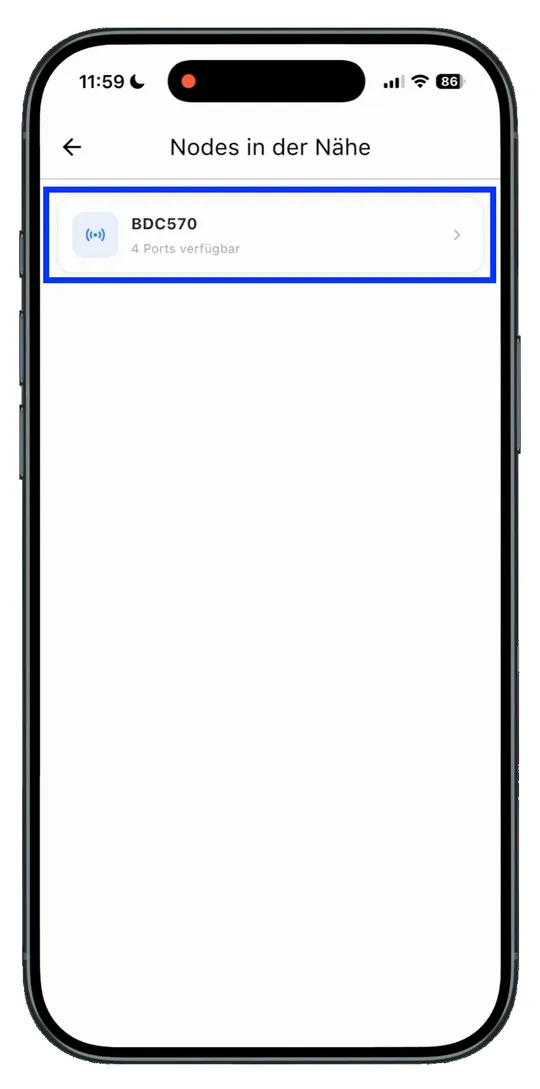
- Select the Node. Move close to your Node and select it as soon as it is displayed.
- Confirm the pairing method. Keep the preselection shown for pairing with the Bridge (pairing by button).
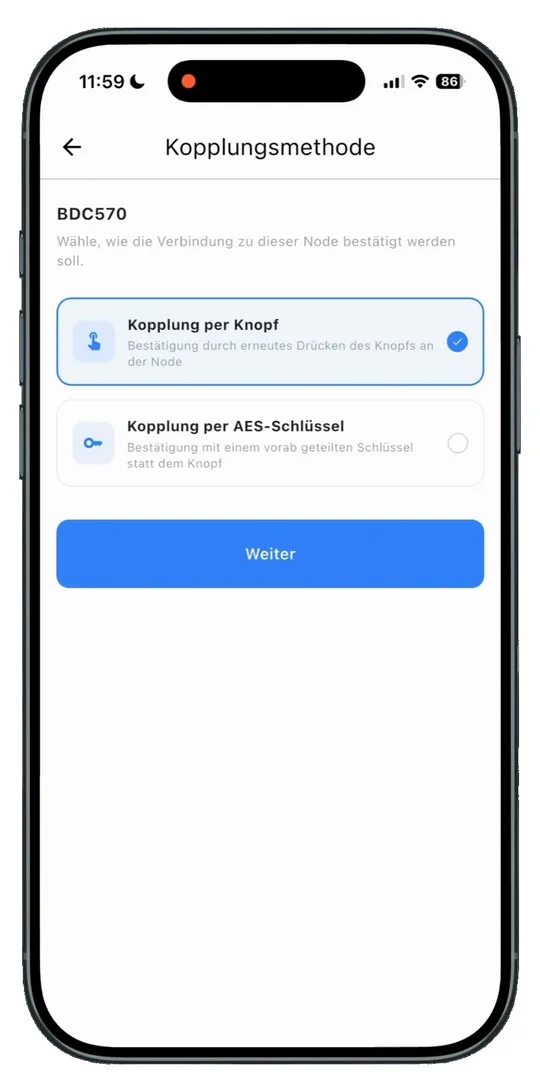
Pairing by button
When pairing by button, the app detects the Node automatically. You do not have to enter a key.
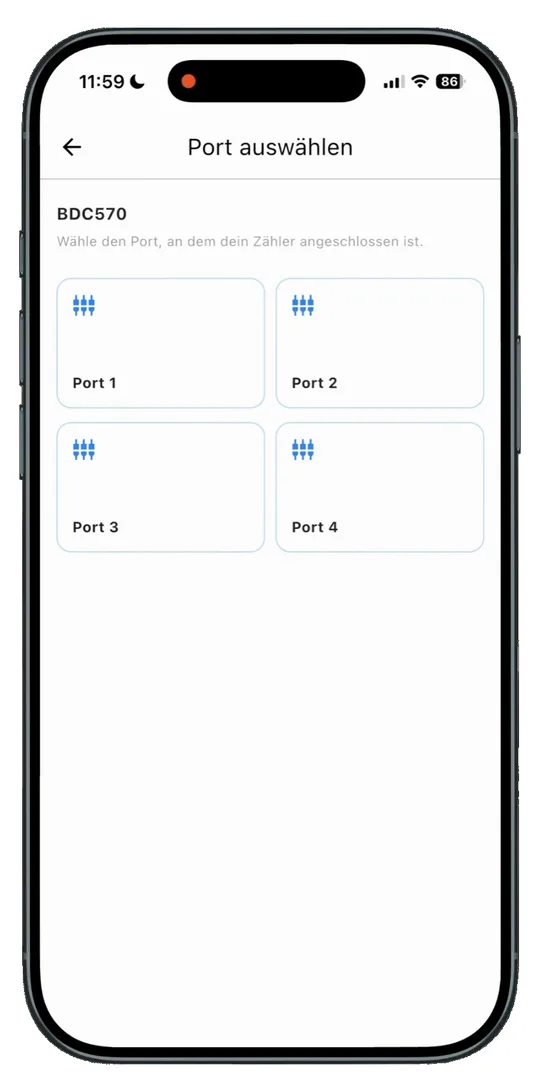
- Choose a port. Choose the port you connected your sensor to with the cable.
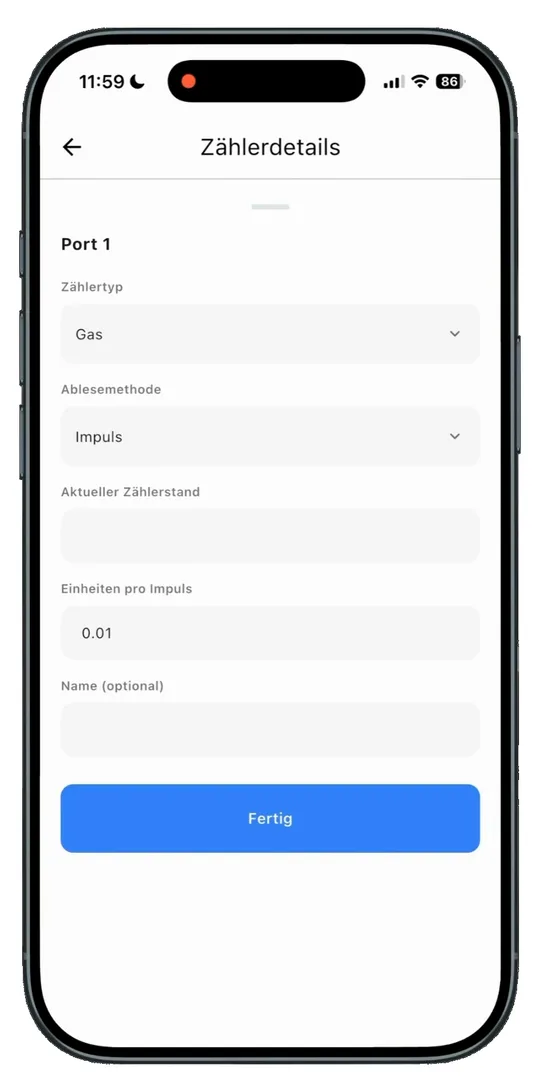
- Name the port. Fill in the details: meter type, reading method, current meter reading and units per pulse. Give the port a name of your choice and save the setting with Done.
- Activate the Node. Since this is the first pairing of the Node, now hold the button on the Node for 5 seconds. LED 1 blinks three times quickly to confirm, then all four LEDs stay on – the Node now waits up to 45 seconds for the Bridge. Press the button once more briefly when the app prompts you to, to confirm the pairing.
Don't hold the button much longer than 5 seconds
If you hold the button much longer, a full factory reset is triggered after about 20 seconds, which deletes all settings of the Node. What the LEDs show during pairing is described under LED Indicators – During pairing.
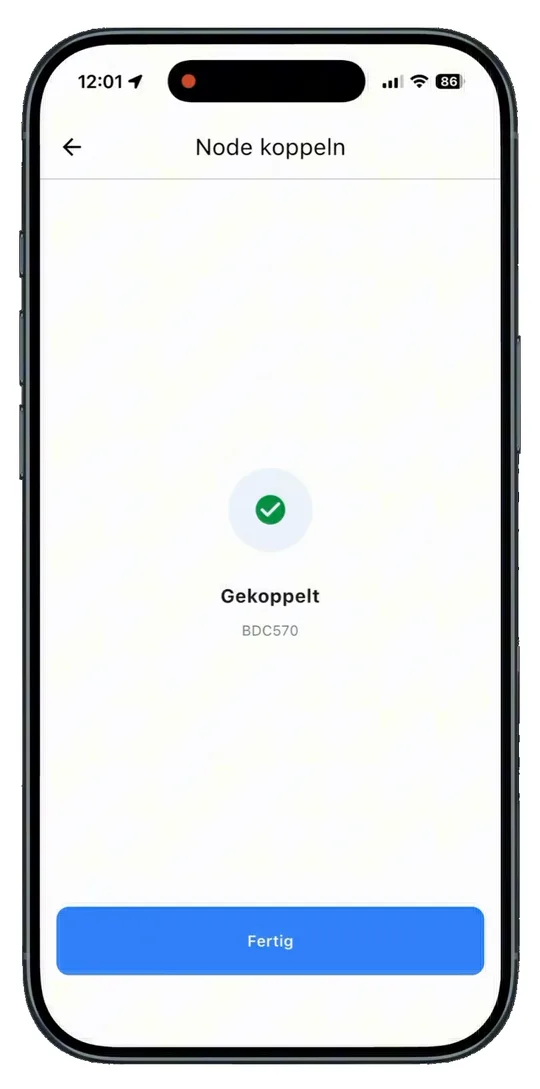
- Node paired. Your Node is now paired successfully. Once that has worked, all four LEDs go out and the Node returns to normal operation.
Pairing with an external device
If you want to pair the Node with an external device instead of the Bridge, there is an option for manual pairing. You can find out how under Pairing with an External Device.
Cancel at any time
A short button press during the 45-second window cancels the pairing immediately and the Node returns to normal operation.
Next step
Continue with Assigning More Sensors.